Inbox
Answer requests from your company and send messages to everyone or to chosen people.
The Inbox in the admin area has two tabs: Requests and Messages.
Handle requests
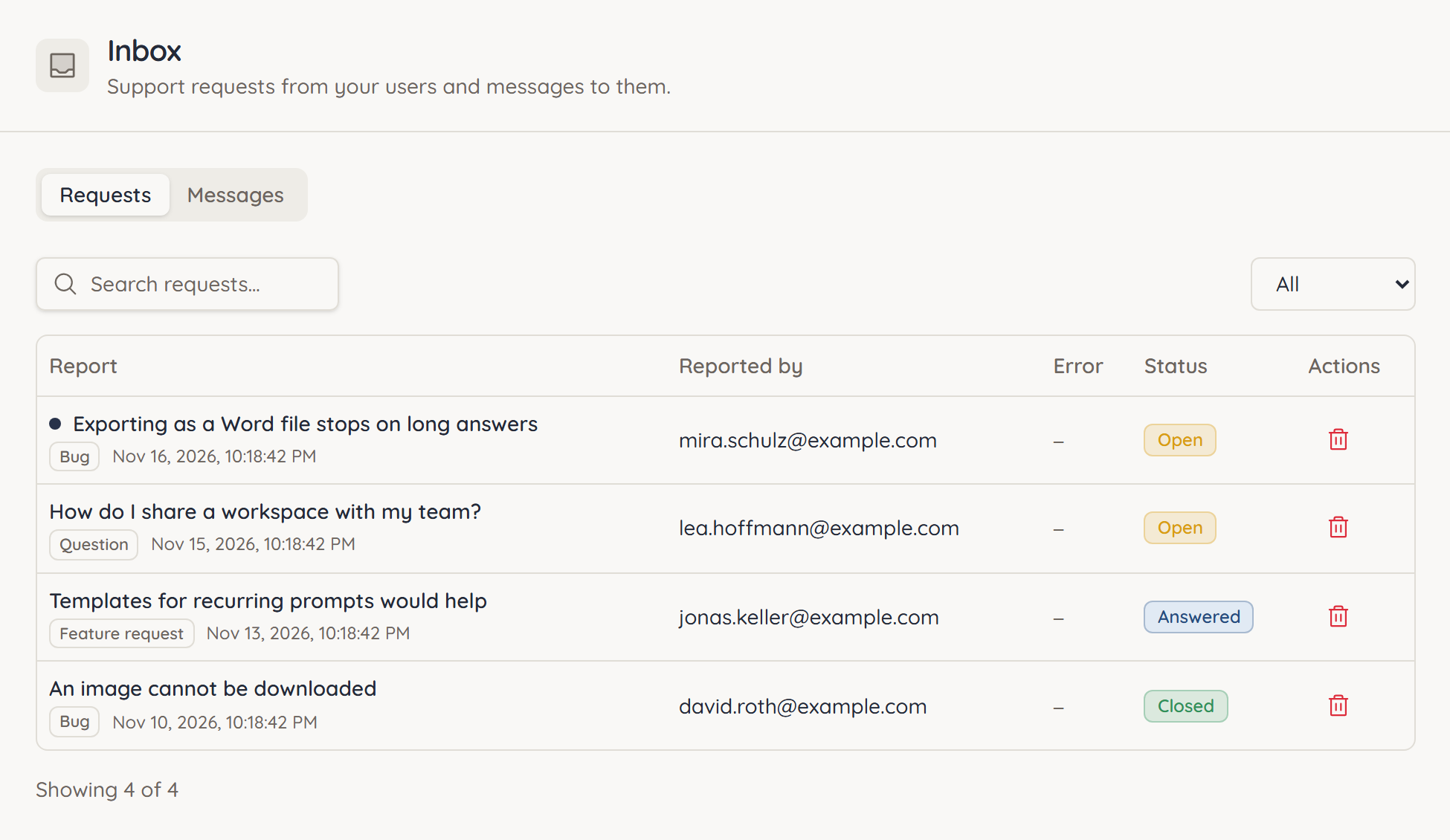
Requests shows what people in your company sent via New request or Report Bug. Each row shows the category (Bug, Question or Feature request), who sent the request and its Status. A dot marks requests with a New message from the user.
- Search: Use the Search requests… field. It finds a request by its subject and its text.
- Filter: Under Status, choose for example Open to see only unanswered requests.
Answer a request
- Click the request. The Support request page opens with the report, the data sent along and the Support conversation so far.
- Write in the Reply field at the bottom. Markdown is supported; attach files with Attach a file.
- Click Send reply.
The request changes to Answered. The person sees your reply under Messages and can respond to it.
Close, reopen and delete
- Once the matter is settled, click Close request. Reopen request brings it back.
- Delete report permanently removes the request and the data sent with it (screenshot, session recording, diagnostics) from your inbox. You cannot undo this step. The person who sent the request keeps the conversation to read, but can no longer reply.
You only see screenshots, session replays and chat content if the person explicitly allowed them when sending. ucando does not show you technical details about the person's device (browser, time zone, app version).
Send a message to your company
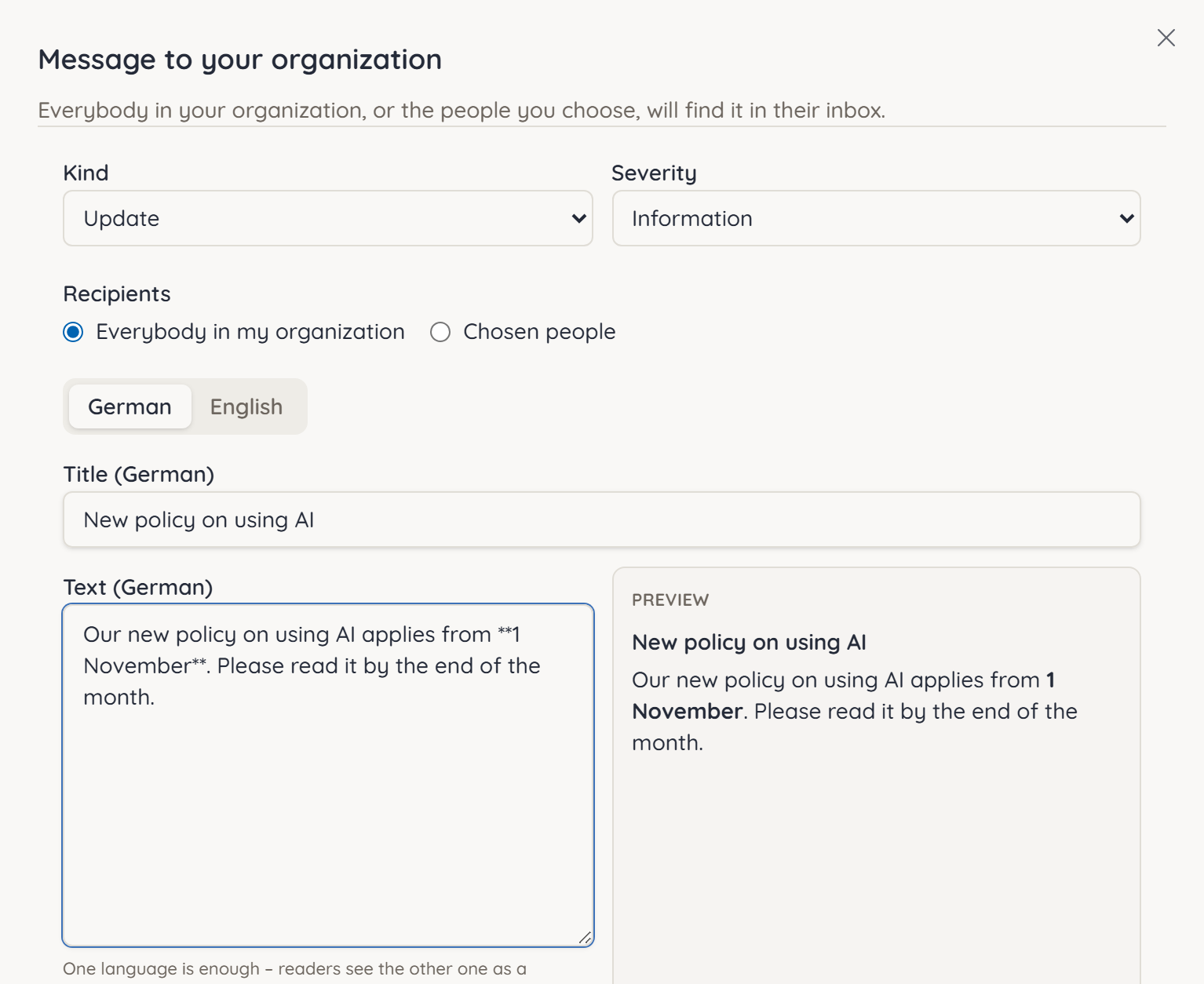
Under Messages you inform your company, for example about new rules or maintenance. The message appears under Messages for its recipients.
- Click New message.
- Choose the Kind (Update, Incident, Notice or Legal) and the Severity.
- Under Recipients, decide who the message reaches: Everybody in my organization or Chosen people.
- Enter a Title and Text. One language is enough. The Preview shows what the message will look like.
- Click Continue. ucando shows how many people the message will reach. Confirm with Send.
More options
- Publish at schedules the message for later. Empty means now.
- Visible until hides the message afterwards. Empty means no end.
- Topic (optional) groups related messages under a shared topic. Pin to the top keeps the message at the top of the list.
- Image (optional) adds an image to updates and notices: PNG, JPEG, WebP or GIF, at most 2 MB.
- Button (optional) takes readers to a place in the app with one click, for example
/workspaces.
Each company can send 20 messages per 24 hours. You send legal messages as information only. Only ucando can require an acknowledgement.
Edit and withdraw
The list shows each message's state (Scheduled, Published, Expired or Withdrawn) and how many people have read it. ucando does not show who exactly has read it.
- Edit changes the text, severity, image or end date. Kind and recipients stay fixed. After publication, the previous version is kept.
- Withdraw removes the message for every recipient. A withdrawn message cannot be published again.
Legal messages cannot be edited after sending. For a correction, send a new message.
Check acknowledgements of legal notices
When ucando sends a legal notice your company must acknowledge, the section Acknowledgement of legal notices appears under Messages.
- Click Acknowledgement report next to the notice.
- You see how many people have acknowledged and how many are pending, plus a list with Person, Role, Status and Acknowledged on.
- Download CSV saves the report, for example for your records.