Models and features
Decide which AI models and features are available in your company.
Two pages in the admin area control what your company can use in ucando: Model Access for the AI models and Tenant Features for individual features. Both settings apply to everyone in your company straight away.
Allow or block AI models
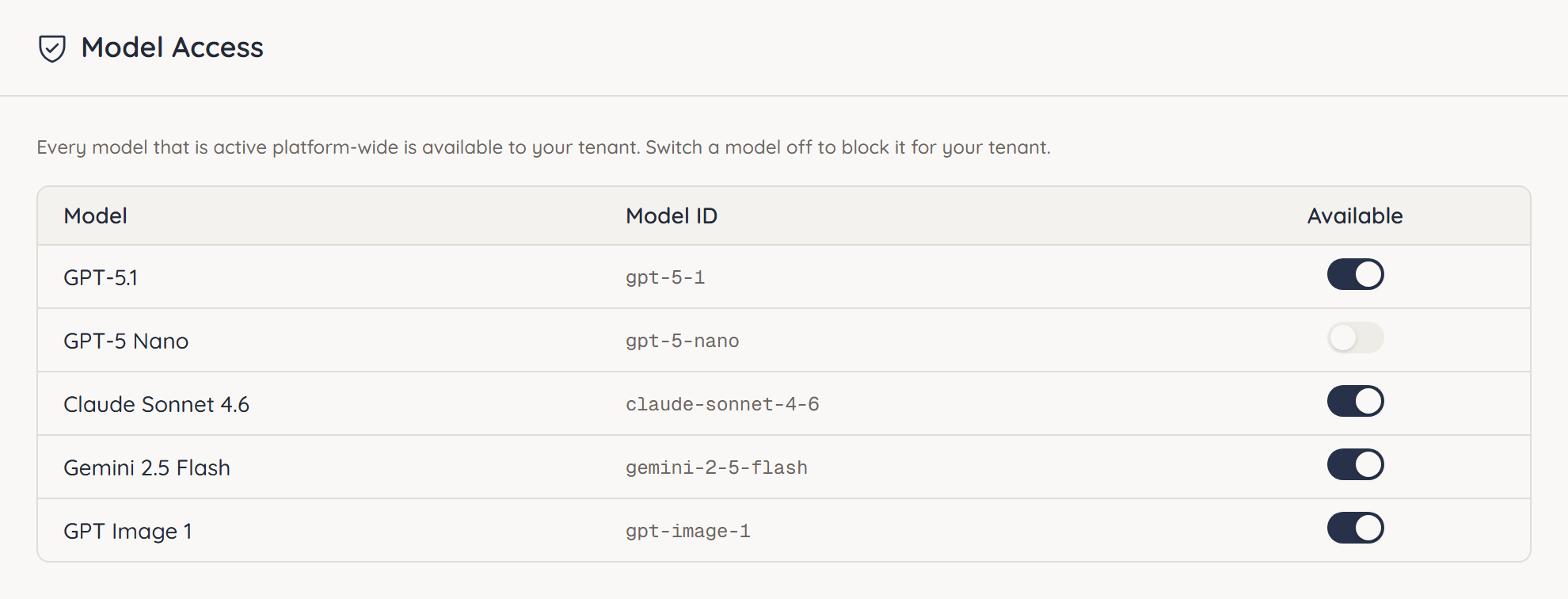
Model Access lists every model ucando offers. Every model that is active on the platform is available to your company at first.
- Open Model Access.
- In the Available column, switch a model off to block it for your company.
- Switch it back on to allow it again.
A blocked model disappears from the model picker for everyone in your company. Auto no longer picks it either. Models marked off platform-wide have been switched off by ucando. They cannot be used, whatever your switch says.
EU models only
At the top of the Model Access and Model Routing pages you see where your company's models run:
- EU models only: everyone in your company uses only models that run in the EU – in the model picker, when picking a model themselves and with Auto. Under Model Access, models outside the EU are marked as not usable, even if their switch is on.
- All released models: your company can use every model ucando offers and you release, including models outside the EU.
You agree on this setting with ucando; you cannot change it in the admin area. To change it, contact your ucando account manager. The EU flag in the model picker shows which models run in the EU, see Choosing a model.
Switch features off for your company
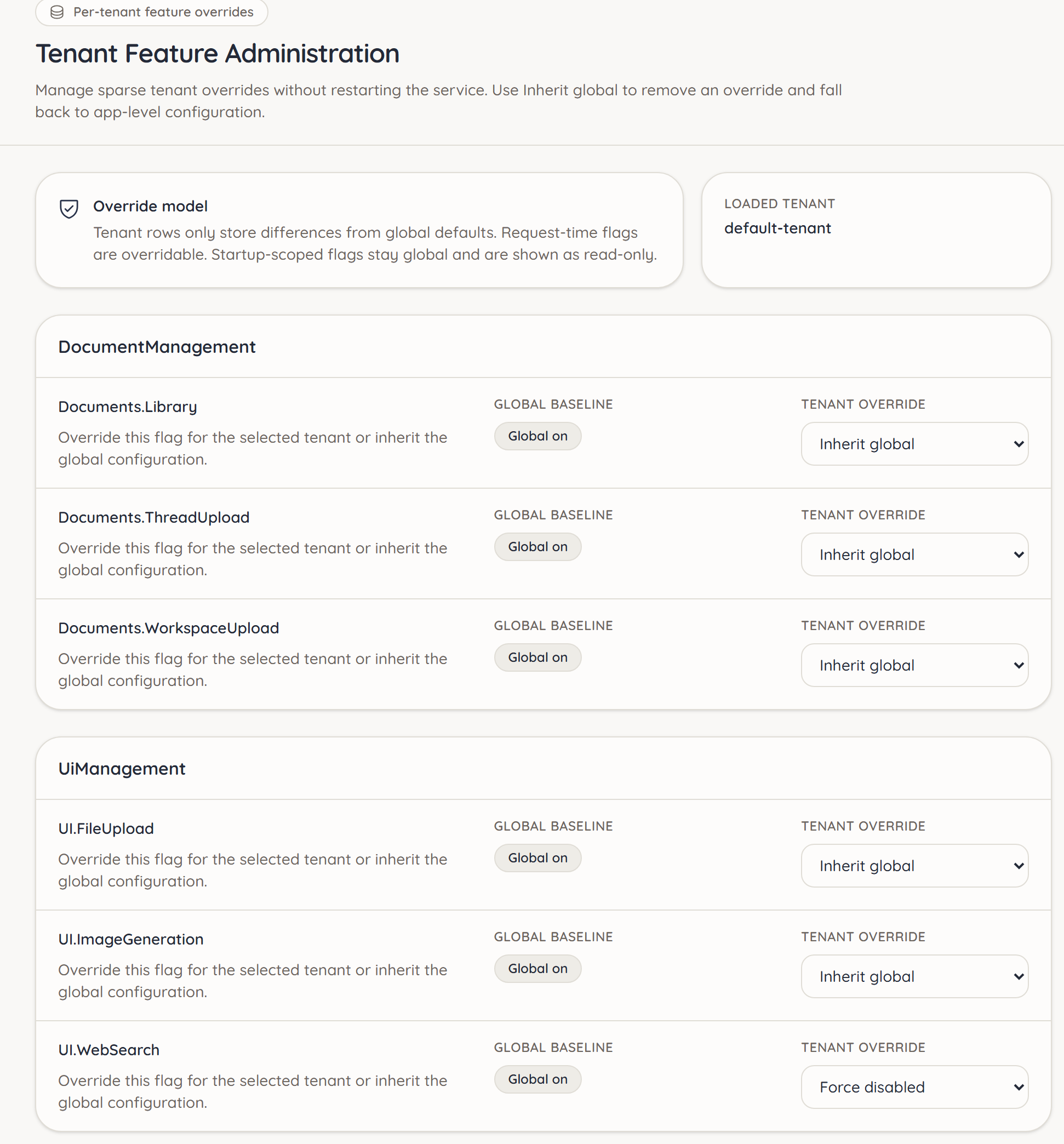
Tenant Features shows ucando's features as technical switches, grouped by category, for example Tools.WebSearch for web search. For each switch, ucando shows:
- the Global baseline, the platform's default: Global on or Global off
- the Tenant override, your deviation from it
To switch a feature off:
- Open Tenant Features.
- Under Tenant override for the switch, choose a value:
- Force disabled switches the feature off for your company.
- Inherit global takes the platform's default again. Every switch starts like this.
You can switch off what your people see and use: the switches starting with UI., Tools., Documents. or Conversation.. Force enabled is not yours to choose: what the platform has switched off, only ucando switches on. On all other rows the selection is locked. Rows marked Read only apply to the whole platform.
Web search sends search queries to Microsoft (Bing). Microsoft is its own controller for this and may process the queries in the United States, see Service providers. If your company does not want that, set Tools.WebSearch to Force disabled. ucando then no longer searches the web for your company, not even on its own.
Set colours for your company
Under Appearance you set the colours for everyone in your company:
- a colour preset (gold is the standard look) that colours highlights, actions like New chat, selection and focus
- own colours with a colour picker: primary, secondary, ternary and accent colour and background, each for light and dark
Readable combinations are your responsibility; ucando does not check own colours.
Use Members may choose other colours to decide how binding your colours are:
- On: your colours are only the start for people who have not chosen their own.
- Off: everyone sees your colours. Their own settings then say "Set by your organisation". If you allow it again later, everyone gets their own choice back.
Remove all lifts the setting; everyone chooses for themselves again. Font sizes and Reduce motion are not yours to set: they stay with each person, because they are about readability.