Users and roles
Find the people in your company and decide who may administer ucando.
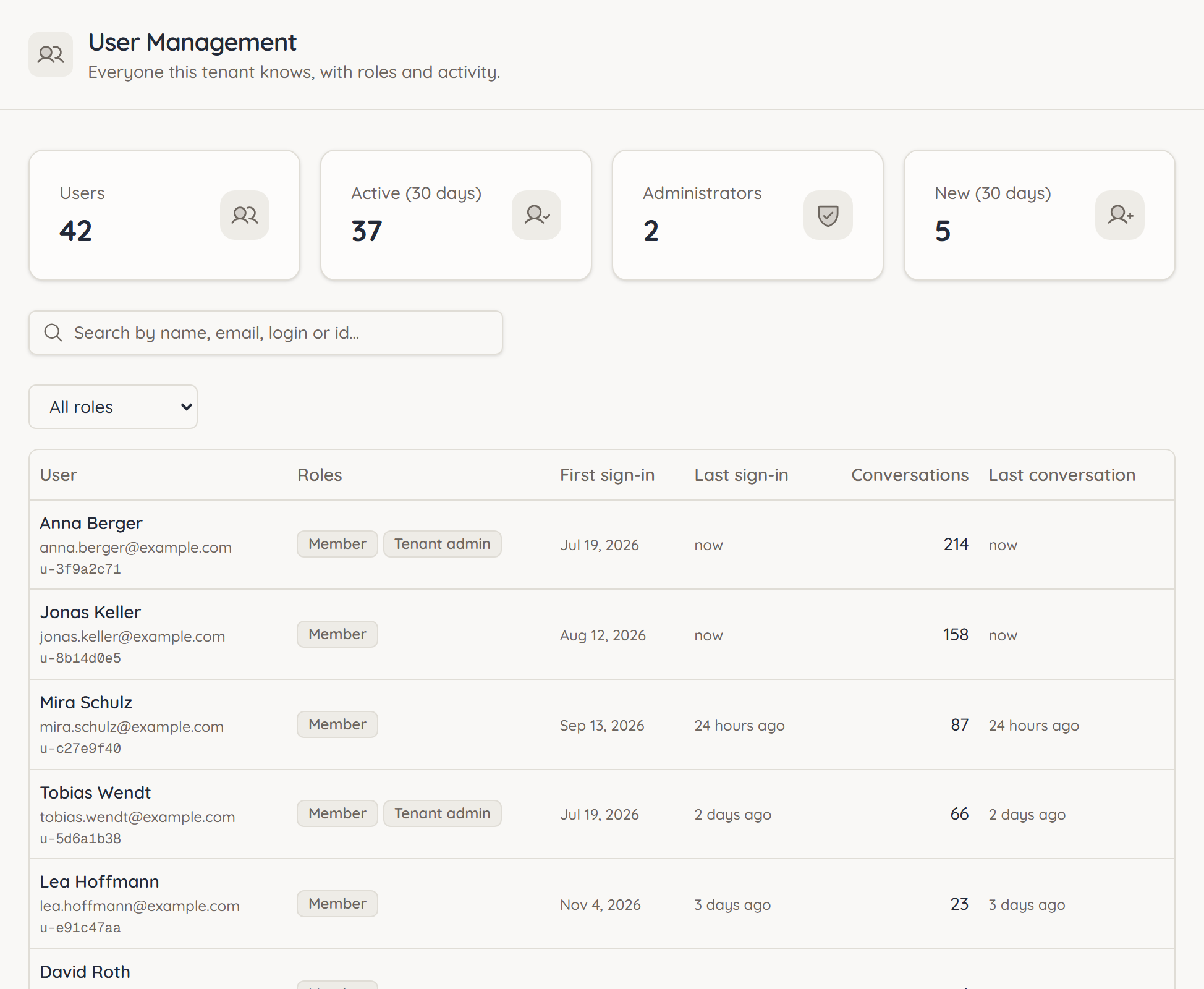
Users lists everyone in your company who uses ucando. The page is called User Management.
Find people
At the top you see four figures: Users, Active (30 days), Administrators and New (30 days).
The list sits below. Each row shows the person's name, email address and user ID, plus their Roles, First sign-in, Last sign-in, number of Conversations and Last conversation. You do not see what the conversations contain.
- Search: Type a name, email address, login or user ID into the search field. The list filters as you type.
- Filter by role: Under Role, choose for example Tenant admin to see all admins.
The list shows at most 200 people, the most recently active ones. In larger companies, narrow the search.
Assign a role
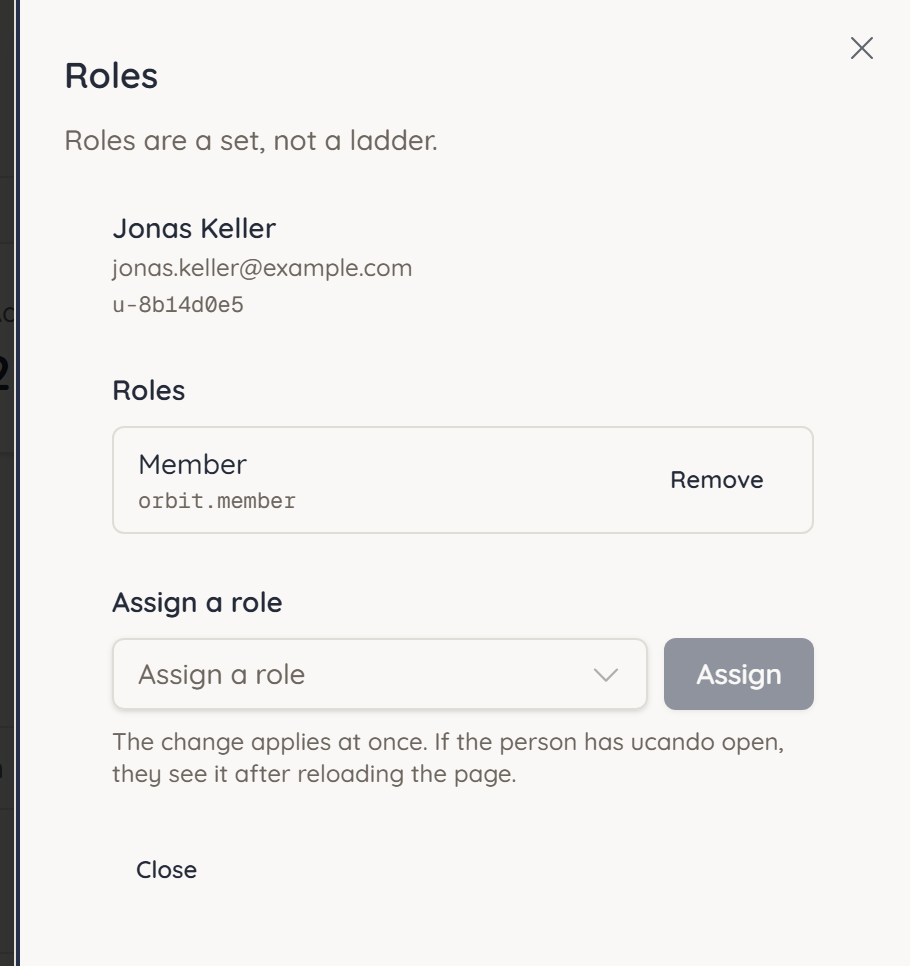
- Click the person in the list. The Roles panel opens.
- Under Assign a role, choose the role you want.
- Click Assign.
ucando confirms with Role assigned. The selection only offers roles you may grant yourself and that the person does not hold yet. As a tenant admin, these are Member and Tenant admin.
Roles are a set, not a ladder. A person can hold several roles and gets the rights of all of them combined.
A change applies at once. If the person has ucando open, they see it after reloading the page.
Remove a role
- Open the person in the list.
- Click Remove next to the role.
You cannot remove roles that only the ucando team grants. They have no button.
Appoint at least two tenant admins. Your company then stays in control if someone is away or leaves.