Choosing a model
Let ucando pick the right AI model automatically or decide for yourself – by price, performance and hosting region.
Auto: the right model for every request
Out of the box the model picker is set to Auto. ucando then picks a suitable model for each message: a fast, economical one for simple questions and a stronger one for demanding tasks.
You can see which model answered below the answer. Hover over Auto and you see, for example, Automatically selected model: GPT-5.1.
If your account is set up that way, Auto only uses models inside the EU. The model picker then says so explicitly: Auto stays inside the EU.
Picking a model yourself
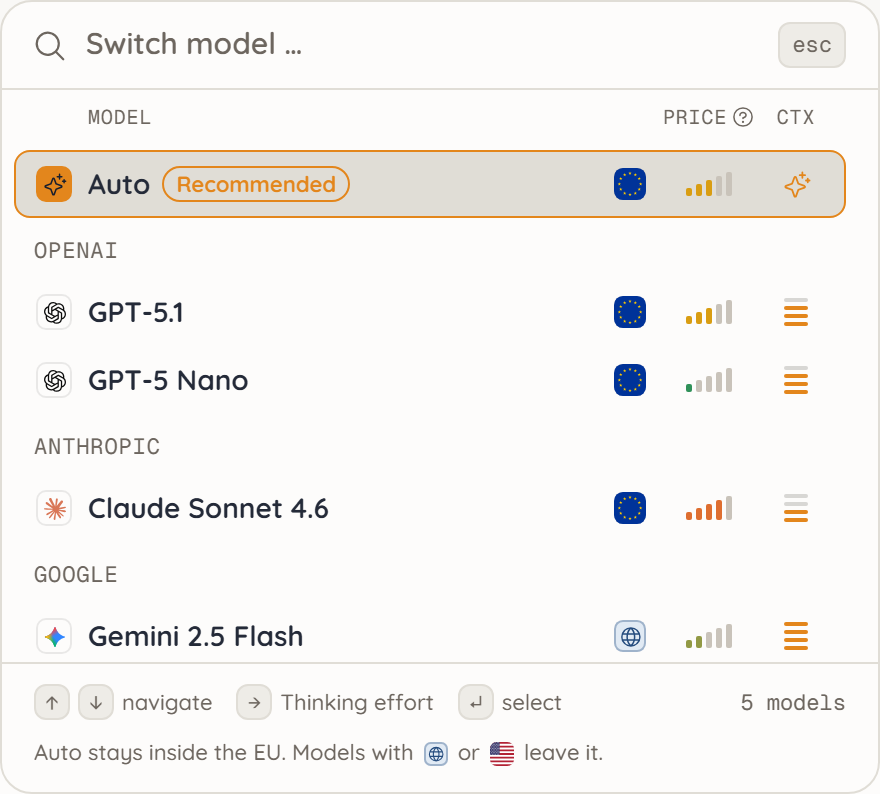
- Click the model name in the input field or press Alt+M.
- Choose a model from the list. Switch model … lets you search the list. The arrow keys move through it, Enter picks.
- Send your message as usual.
Your choice applies from the next message on, even in the middle of a chat. ucando remembers the model in your browser for your next chats.
What the list tells you
Beside the list you see the details of the model you point at: its full description, Price, Context and Region. Without a pointer they show the selected model. In the list, a hint explains each mark when you hover over it.
The bars under Price place each model in one of five tiers, from one bar for Minimal to five for Premium:
| Tier | Good for |
|---|---|
| Minimal | Short, simple questions, rewording |
| Economical | Everyday tasks, summaries |
| Standard | Most texts and analyses |
| Elevated | Demanding texts, longer documents |
| Premium | Complex tasks where quality comes before cost |
Tiers are curated using independent market benchmarks. They are not an exact real-time price calculation.
Context shows how much text a model can take into account at once, for example 400K tokens. The list shows four strokes for it: one up to 128K, two up to 256K, three up to 512K and four above. A large context pays off for long documents and long chats.
The mark left of the price shows the Region: the EU flag for models in the European Union, a globe for global hosting and the US flag for the United States.
Recommended marks the model your administrators set as the default. Maintenance means a model is temporarily unavailable. A lock marks a model your plan does not include: it is included in paid plans. Auto only picks among the models of your plan.
Cheaper, smaller models often answer everyday questions just as well. Try a lower tier for simple tasks – it saves your credits.
Setting the thinking effort
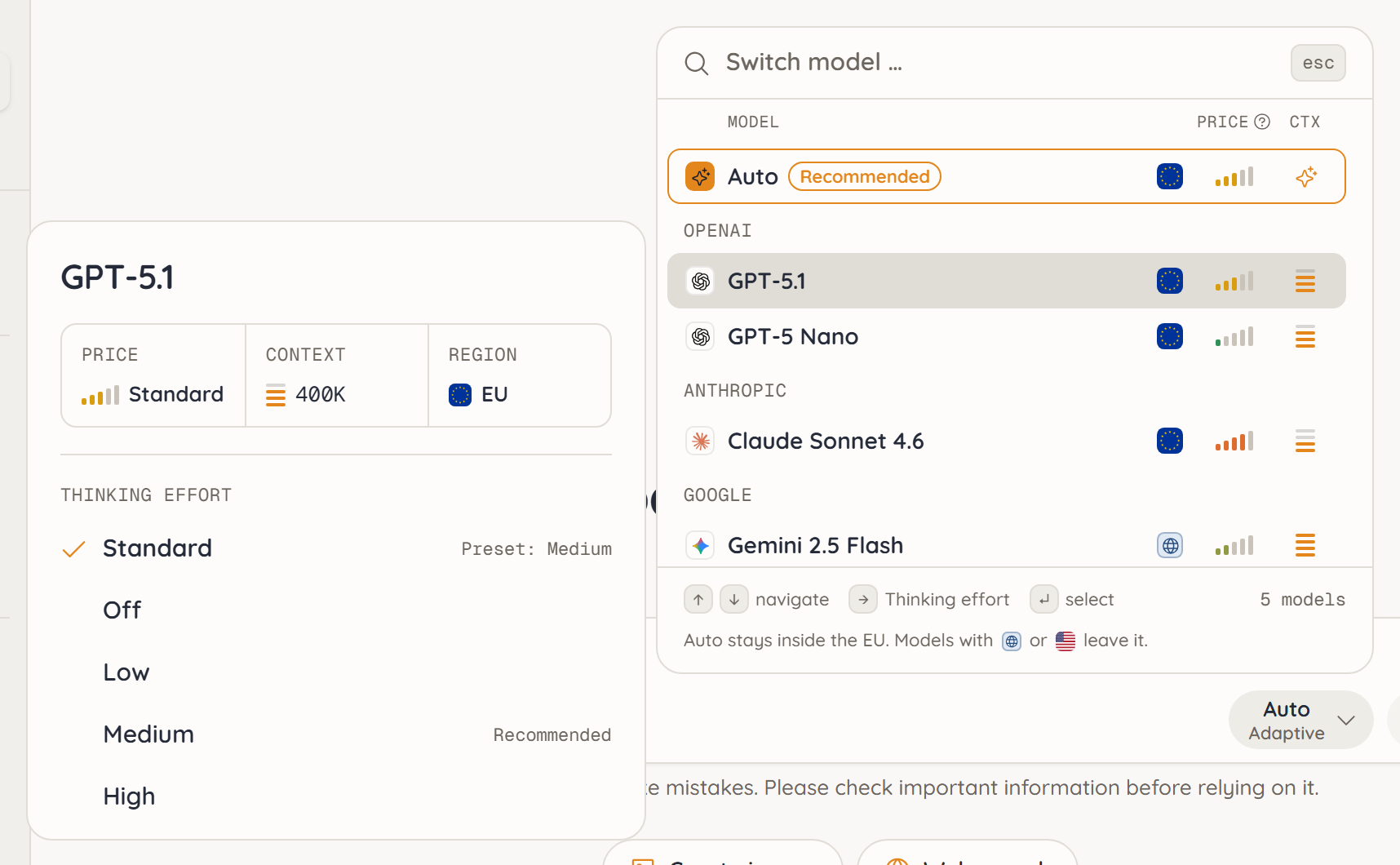
Some models can think for longer before answering. You set how thoroughly in the model picker:
- Click the model name in the input field.
- Point at the model. Its levels are listed under Thinking effort in the details beside it. With the keyboard, the right arrow key takes you there.
- Choose a level. ucando takes the model and the level.
On a phone, tap the Thinking effort row at the bottom. The levels open in the same panel; the arrow takes you back to the models.
| Level | Effect |
|---|---|
| Standard | The model provider picks the effort, or your administration's preset applies |
| Off | No extra thinking, fastest replies |
| Low | Fast, direct answers |
| Medium | Balanced between speed and depth, recommended |
| High | Thorough, multi-step analysis |
| Extra high | Extra-thorough analysis for complex tasks |
| Maximum | Maximum depth for the hardest tasks |
Your level applies to every model. Not every model offers every level: ucando only shows the ones a model supports. A model that lacks your level answers with Standard. A chosen level appears under the model name in the input field, for example Medium under GPT-6.1 Sol; with Standard nothing appears there. With Auto it says Adaptive: Auto decides per question on the thinking effort as well. If the highest level says, for example, up to 4× usage, an answer there can cost about four times as much as with Standard on complex tasks. For simple questions the model barely thinks longer even on high levels, and the answer costs only a little more. The value comes from independent benchmarks.
Once the model has thought, you see Finished thinking above the answer, with the number of steps. Click it to see the individual steps.
Higher levels produce more thorough answers, but take longer and use more tokens. That increases the cost.
When a fallback model answers
If the model you picked is not available right now, a fallback model set up by your administration answers instead. Your message is not lost.
- Above the answer you then see the name of the model that actually answered, with an orange frame and a *.
- Hover over it or tap it to see why, for example Fallback model – GPT-6.1 Sol declined the question because of its content filter, so Gemini 3.8 Flash answered.
- If the provider's content filter declined your question, a note also appears below the answer. Such filters sometimes fire on harmless questions too.
With Auto there is no such marker: ucando picks the model itself anyway.