Attaching files
Give ucando PDFs, Office files, spreadsheets and images – and ask questions about their content.
When you attach a file, ucando reads its content and uses it in its answers. That way you can summarise a contract, analyse a spreadsheet or ask questions about a manual.
Attaching a file
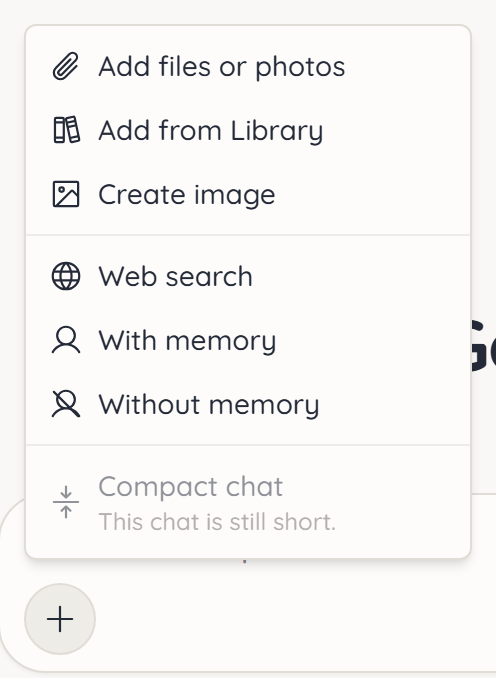
- Click + (More options) in the input field.
- Choose Add files or photos and pick the file.
- Wait until the file shows Ready, then send your question.
You can also simply drag files into the chat. Paste images from the clipboard straight into the input field with Ctrl+V.
A file that is already in your Library doesn't need to be uploaded again. Choose Add from Library in the plus menu.
What happens to the file
After the upload ucando prepares the file: the text is read, split into sections and made searchable. You can follow the progress on the file, for example Extracting text… or Indexing…. The message can only be sent once the file is ready.
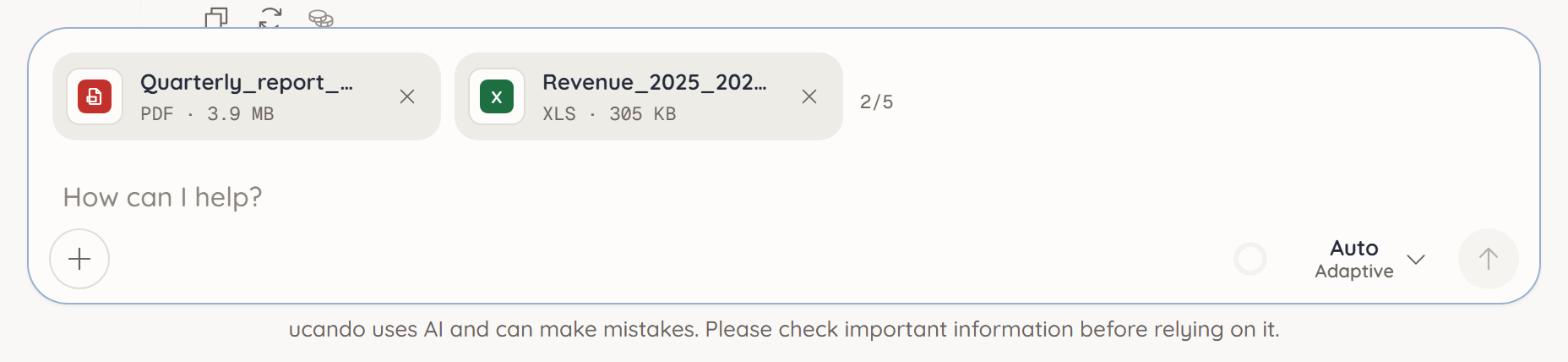
What goes with the next message stands as a card at the top of the input field: file type, name, size and an × to remove it. Beside the cards, 2/5 counts how many of the chat's five files are used.
Attached files apply to the whole chat, so you can ask about them in later messages too. Files already in the chat no longer stand as cards in the field: click the counter to see them. Every file also ends up in your Library.
On a phone, one button such as 2 files stands for the cards. Tap it to open the Files sheet: the files with a bin, and below them the active tools with switches.
When an answer draws on a file, the file name appears at that spot. Hover over it to see the page too, for example Page 4. Clicking it opens the file at that page.
Supported files and limits
| File types | PDF, Word, Excel, PowerPoint, text, Markdown, CSV, HTML, images (PNG, JPEG, TIFF) |
| Files per chat | up to 5. With five, Add files or photos and Add from Library are greyed out in the plus menu. |
| Size per file | up to 25 MB |
Large files use noticeably more credits to process. ucando tells you with a Large file notice but uploads them anyway.
If you need more than five files, or the same files in many chats, create a project. There, every chat searches all of the project's files.
Analysing images
If you attach a photo, a screenshot or a chart, ucando can analyse the image, for example “What does this sign say?” or “Describe the chart”. This works with models that understand images and with up to three images per message. Other models use the text recognised in the image.