Creating and editing images
Describe an image in words – ucando creates it, and you refine it in the conversation or with a mask.
ucando creates images from your description, such as illustrations, social media graphics or ideas for a layout. You can keep editing every image afterwards.
Image generation is available on every plan; each image costs credits. See Plans and credits.
Creating an image
- Click + in the input field and choose Create image. In a new chat you can also use Create image below the input field.
- Describe the image as precisely as you can: subject, style, colours, mood and format.
- Send the message.
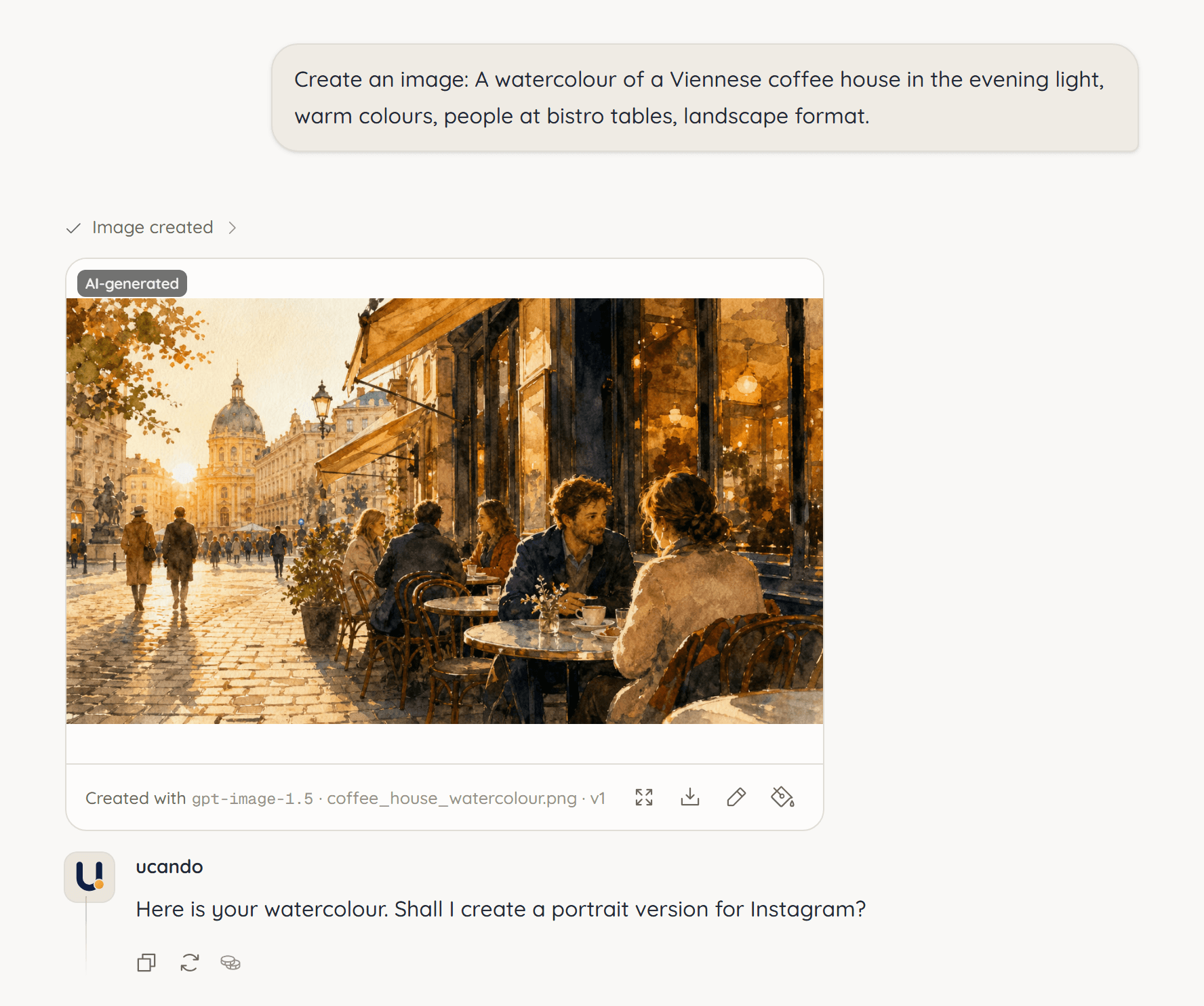
While ucando works, Creating image shows above the picture. Afterwards you see the image with the model used and the file name. Every generated image carries the AI-generated label.
A good description names style and mood, for example: “A watercolour of a Viennese coffee house in the evening light, warm colours, people at bistro tables, landscape format.”
Viewing and downloading images
Below each image you find these icons:
- View full size – opens the image large. Zoom in and Zoom out let you look closer.
- Download image – saves the image to your device.
- Edit image and Inpaint with mask – see below.
Every generated image is saved to your Library automatically. The AI Generated filter finds them there quickly.
Editing an image with words
- Click Edit image below the image.
- Describe the change, for example “Make the sky darker” or “Add a dog under the table”.
- Press Enter.
ucando creates a new version of the image. It keeps the file name with a higher version number, such as v2. The previous version is kept.
Retouching a specific area
If only part of the image should change, mark that area with a mask.
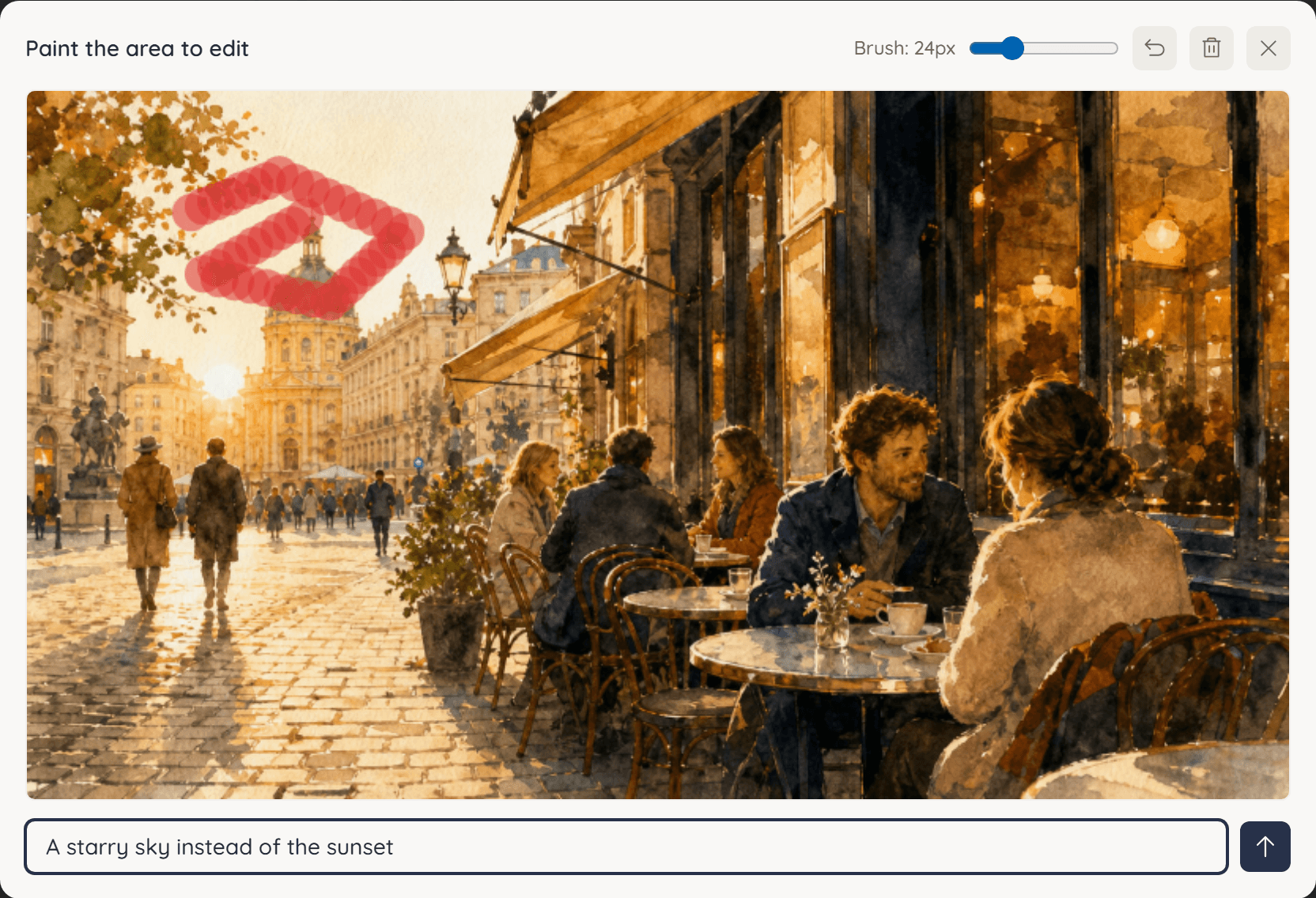
- Click Inpaint with mask below the image.
- Paint over the area that should change. Set the brush size with the slider.
- Describe what should appear there.
- Click the arrow (Apply inpainting) or press Ctrl+Enter.
Undo takes back the last stroke, Clear mask starts over, Esc cancels.