The Library
All uploaded and generated files in one place – view, reuse, download and tidy up.
The Library collects every file you upload: in a chat, in a project or straight into the Library. Images that ucando creates for you are here too.
The Library is available on every plan: up to 3 uploaded documents on Free, 2 GB on Pro. See Plans and credits.
Opening the Library
In the sidebar, click Library under Quick access.
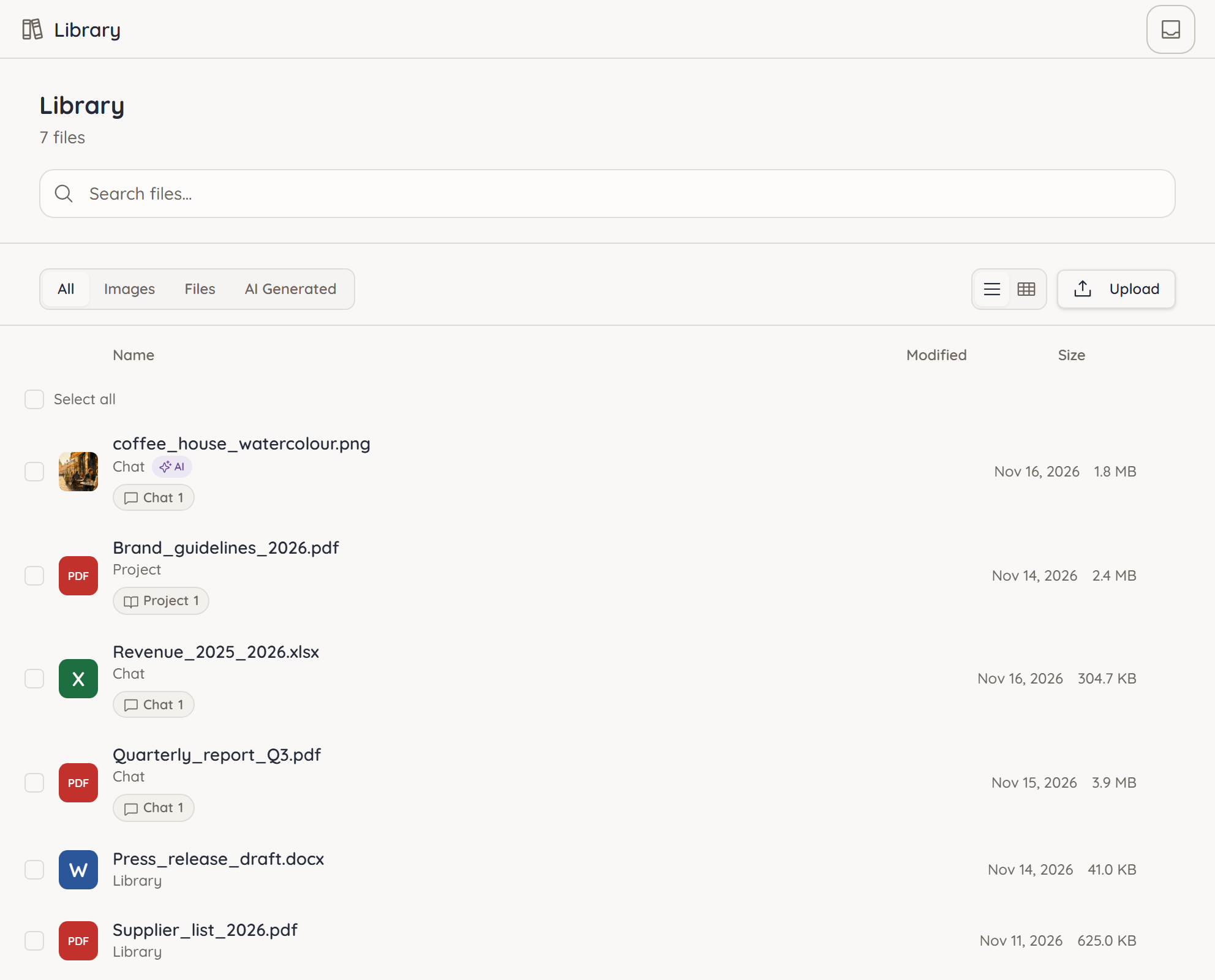
Each file shows where it came from (Chat, Project or Library) and where it is used. Images created by ucando carry the AI label.
Finding files
- Search – Type a file name into Search files….
- Filter – Choose All, Images, Files or AI Generated.
- View – Switch between List view and Grid view. The grid shows thumbnails.
Uploading files
- Click Upload.
- Pick one or more files.
- ucando uploads the files one after the other and prepares them. While that runs, the file shows Processing.
Supported are PDF, Word, Excel, PowerPoint, text, Markdown, CSV, HTML and images in PNG, JPEG and TIFF format. A file can be up to 25 MB.
Large files use noticeably more credits to process. ucando tells you before uploading.
Viewing and using files
Click a file to open the preview. ucando shows images, PDFs, Markdown and text files directly. If a file has several versions, use the arrows in the preview to move between them.
Each file's file actions menu holds:
- Start chat – opens a new chat with the file already attached.
- Download – saves the file to your device.
- Delete – removes the file.
You can also use Library files in a running chat: click + in the input field and choose Add from Library.
Working with several files at once
Tick the files you want or choose Select all. In the bar that appears you can start a chat with all selected files, download them or delete them.
A deleted file also disappears from every chat and project that uses it. ucando warns you before deleting.