Introduction to projects
Bundle chats, instructions and files for one initiative – the context applies to every chat inside.
A project brings together everything that belongs to one initiative: its chats, shared instructions and files. Every chat in the project knows the instructions and searches the files automatically, so you don't have to explain the context in each chat again.
Typical examples are an assignment, a customer, a campaign or a recurring topic such as job ads.
In company accounts, projects are called workspaces.
Your projects at a glance
In the sidebar, click All next to Projects. The overview shows each project with its description and the number of its chats and files.
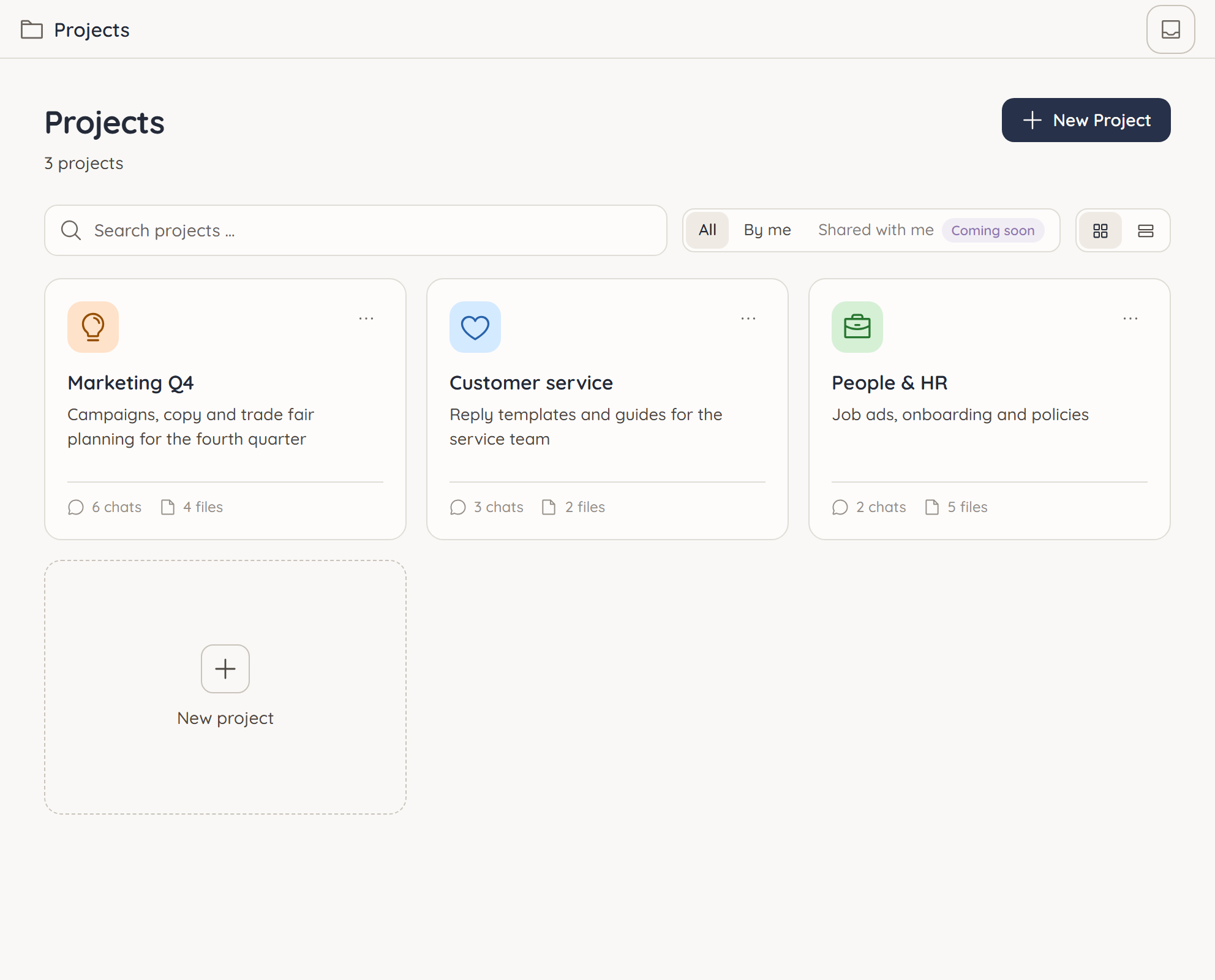
Tiles and List switch the layout. The search field finds projects by name or description. Your most recent projects are also listed directly in the sidebar.
Creating a project
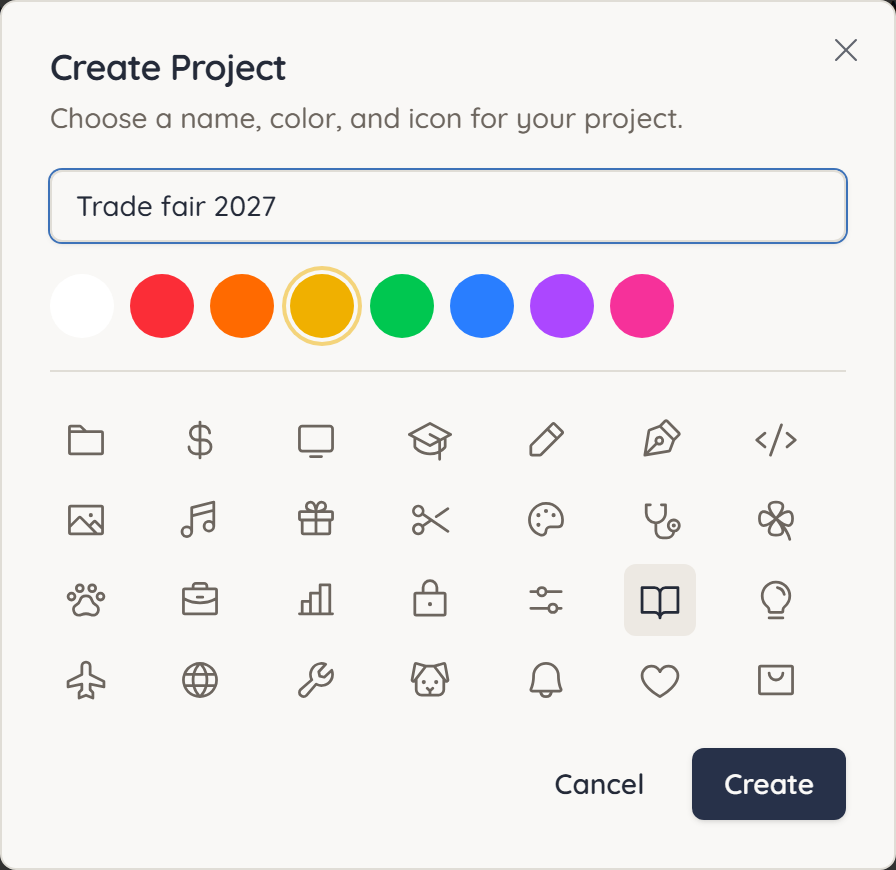
- Click New Project – in the overview or via the + in the sidebar.
- Enter a name.
- Choose a colour and an icon.
- Click Create.
ucando opens the new project right away. You can add a description later under Edit → General.
The Free plan includes one active project, the Pro plan as many as you like. The overview shows how many you are using.
Chatting in a project
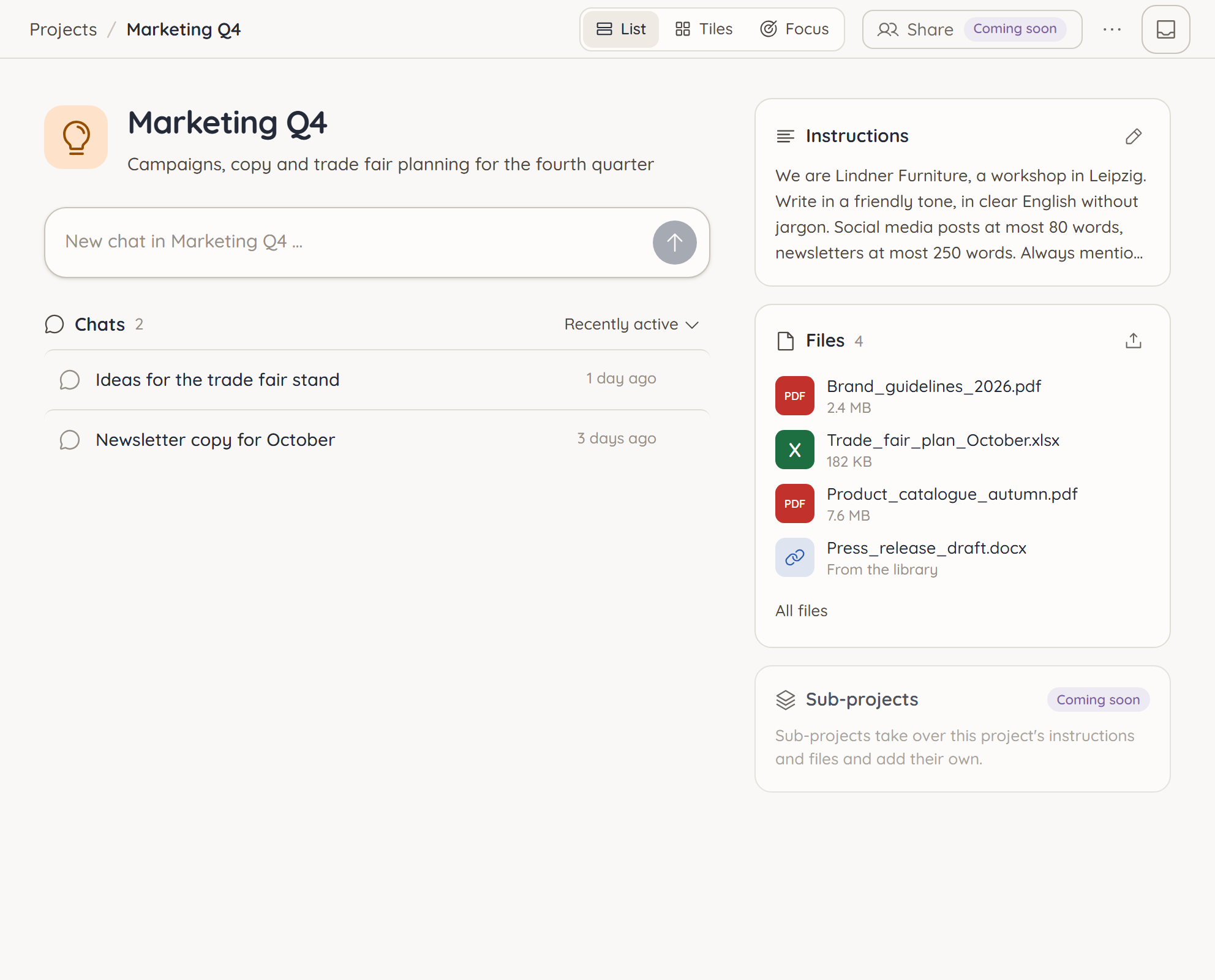
Open the project and type into the New chat in … field. Enter starts a new chat that belongs to the project. Below it you see all chats of the project, sorted by Recently active, Recently created or Name.
At the top right you choose between the List, Tiles and Focus views. Focus puts a large input field and the latest chats at the centre.
In a chat of the project, the header shows the project's name, and it hangs above the input field as a tab. A click on the tab shows what applies here: what ucando learns in this project stays in the project, and below it are the instructions and files. The switch Read personal memory decides whether the project knows what you have told ucando about yourself – whoever may edit the project can change it. Open takes you to the project.
Moving chats
You file an existing chat with Move to Project. It is in the chat's menu in the sidebar, at the top of the open chat and on the Conversations page. From the next message on, the project's instructions and files apply.
To take a chat out again, open the project, click the chat's menu in the chat list and choose Remove from project. The chat is kept and stays in your chat list.
Renaming, archiving and deleting projects
A project's menu holds Rename, Archive and Delete. You can also change the name, description, colour and icon under Edit → General.
- Archive takes the project out of every list and frees a slot in your plan.
- Delete removes the project with its instructions and uploaded files. The chats are kept and become ordinary chats.
An archived project cannot be restored at the moment. Only archive what you no longer need.