The tutorial
Short tours show you ucando right inside the app, by themselves on your first visit and from the user menu any time after.
The welcome tour
On your first visit the Welcome & chat tour starts by itself. It dims the page, highlights one control and explains it in a small window.
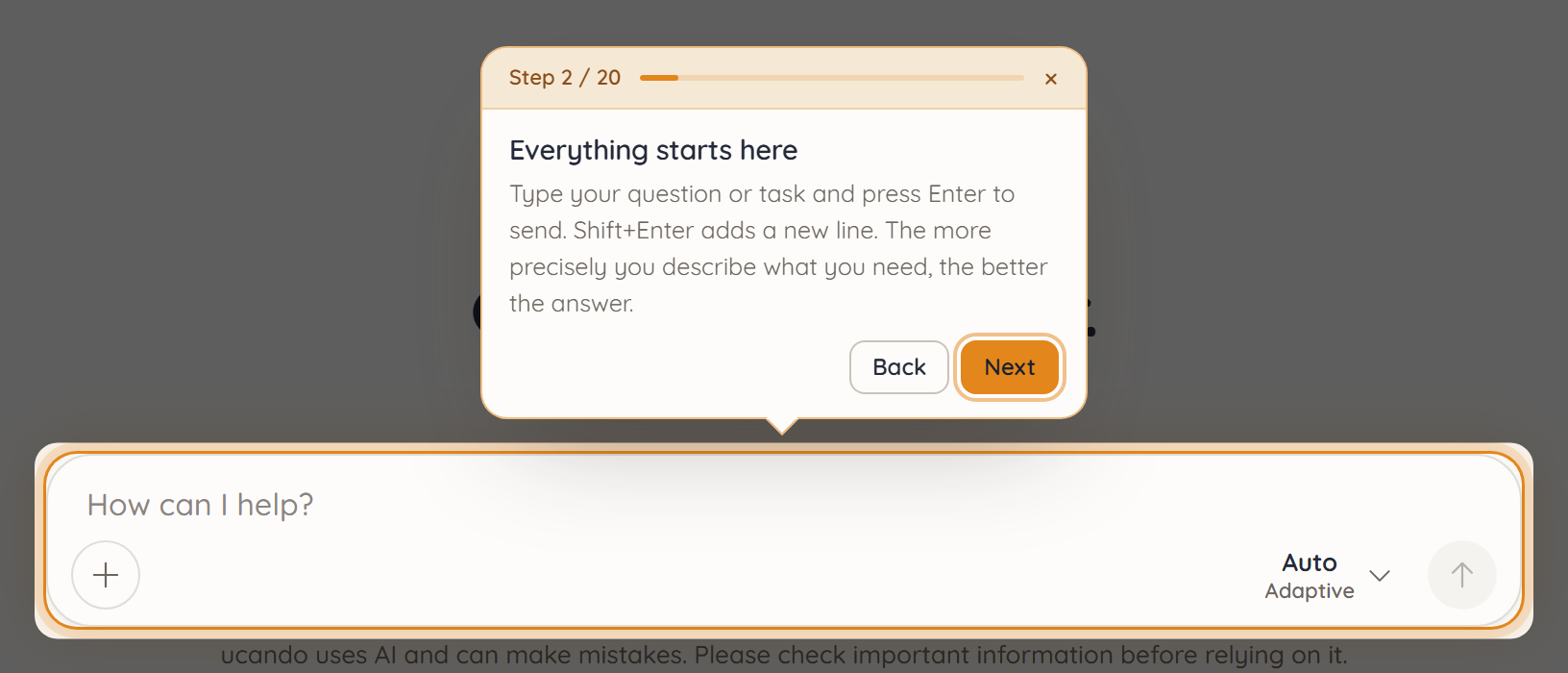
- Use Next and Back to move from step to step. The arrow keys do the same.
- The top of the window shows where you are, for example Step 2 / 21.
- On the last step, Done finishes the tour.
If you would rather not take the tour, click Skip on its first step. It will not start by itself again.
Try it yourself
In a few places you do it yourself: ask a first question, have ucando remember something, create an image, chat with a document or create a project. Instead of the window, a card marked Try it appears, and the page stays fully usable.
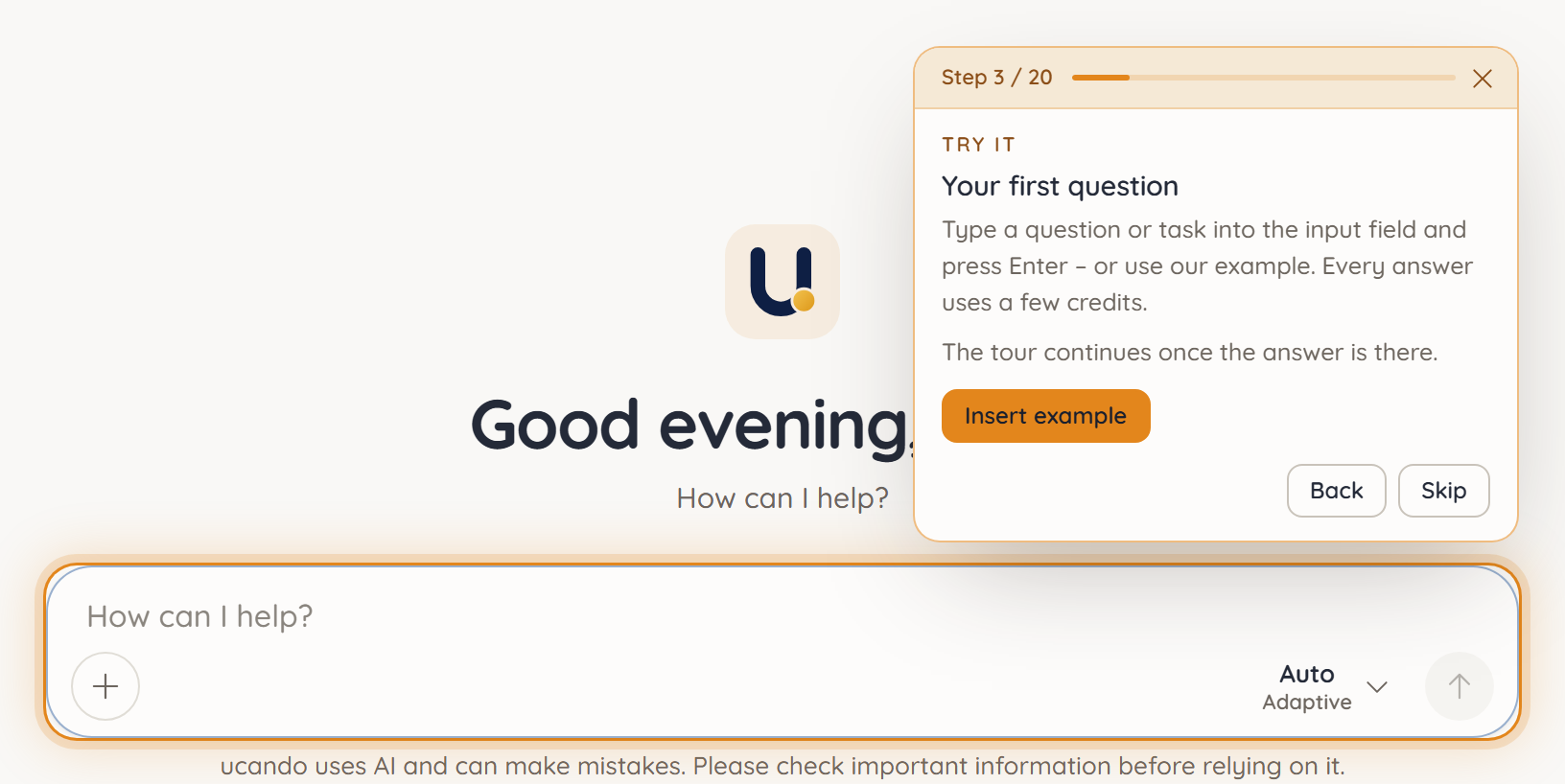
- Type something yourself or click Insert example. ucando only fills in the message field; nothing is sent.
- Send the message. The tour continues once the answer is there.
- Skip leaves the step out without sending anything.
On the document step, Choose a file opens the file picker straight away.
Whatever you send during the tour is a normal chat and uses credits like any other message.
Pausing and continuing
Press × or Esc to pause a tour. ucando remembers the step you stopped at.
For the welcome tour, ucando asks Continue the tour? once on your next visit to the chat. Continue picks up where you left off. Any other tour you continue from the tutorial.
Your progress is stored with your account, so it applies on every device you sign in on.
Starting a particular tour
- Click your name in the bottom left.
- Choose Help → Tutorial.
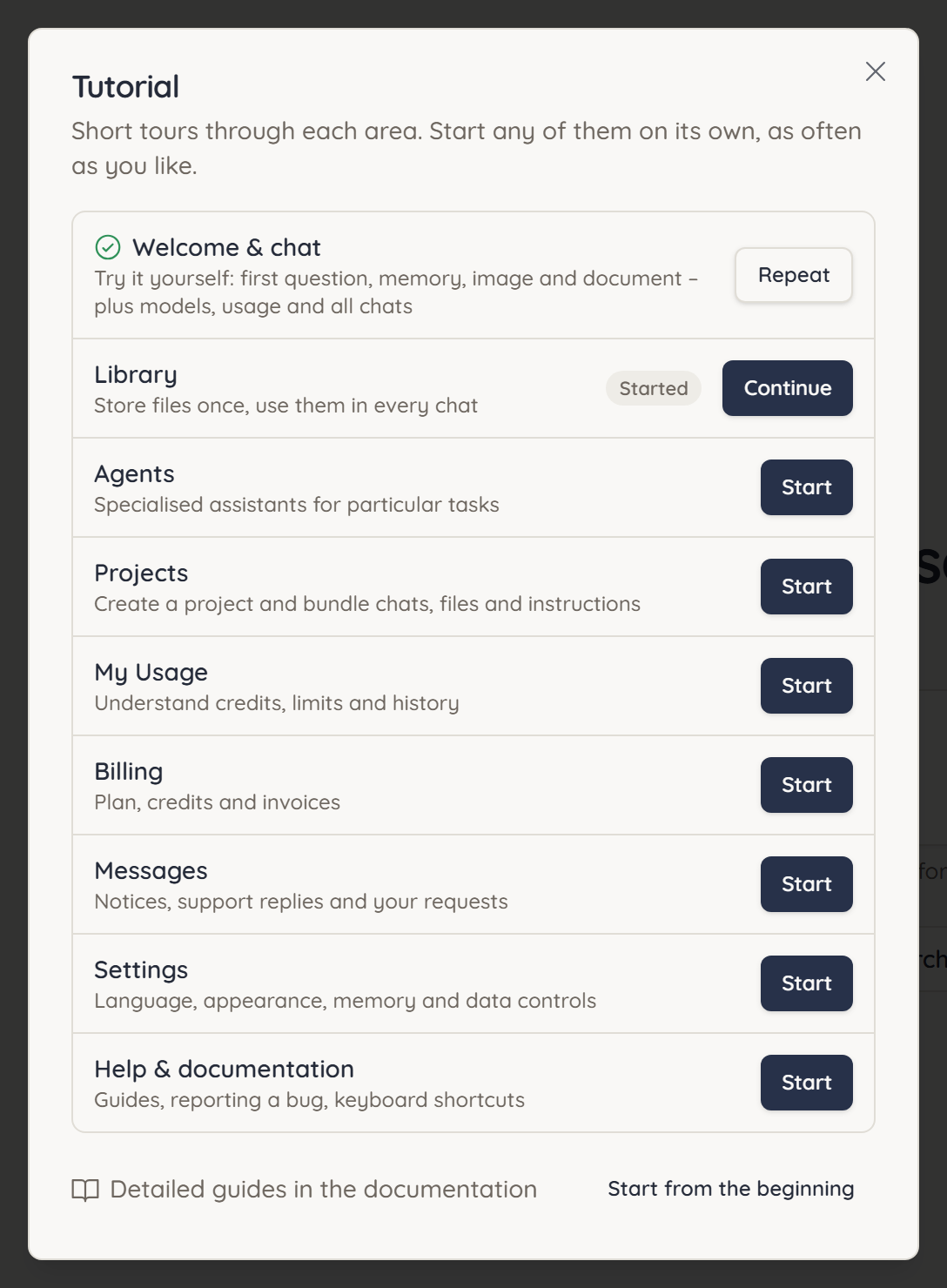
- Next to a tour, click Start, Continue or Repeat.
The tutorial only lists tours for features available to you. Each tour opens the page it explains by itself. A check mark shows which tours you have finished. Started means you stopped part-way. Updated marks a tour that has changed since you took it.
Start from the beginning takes you through the whole tutorial in order. At the end of each tour, Next: followed by the next tour's name takes you straight there.