Your first chat
Ask your first question, read the answer and keep working in the conversation.
Asking a question
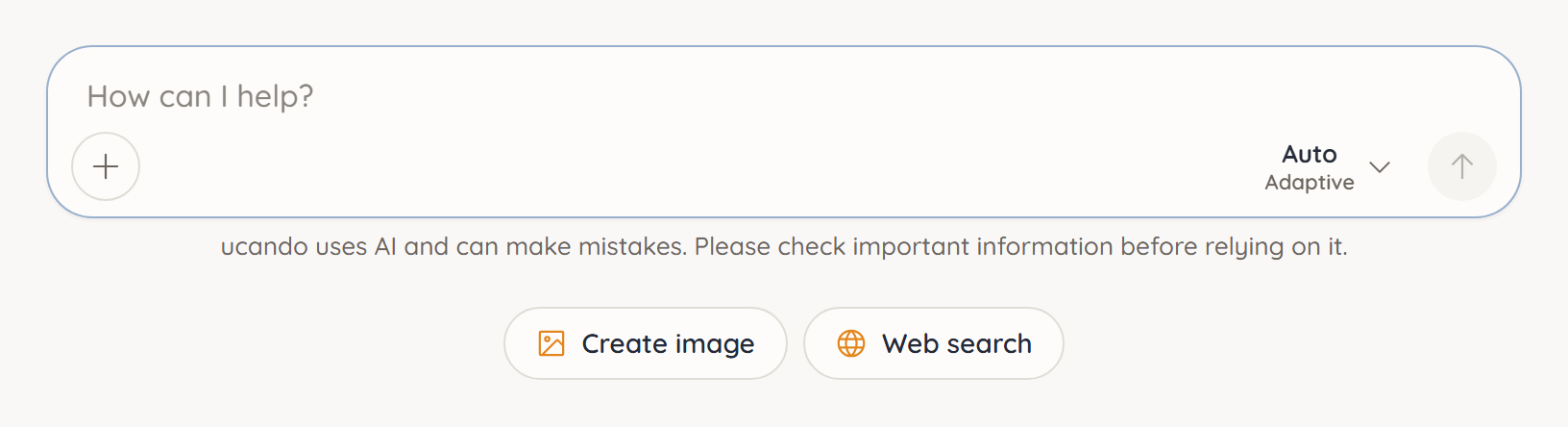
- Click New Chat in the sidebar.
- Type your question or task into the field that reads How can I help?
- Press Enter or click Send.
For a line break, press Shift+Enter. That keeps longer tasks easy to read.
The more precisely you describe what you need, the better the answer. Mention the purpose, the audience and the length you want, for example: “Write a short, friendly invitation to our customers, 100 words at most.”
Reading the answer
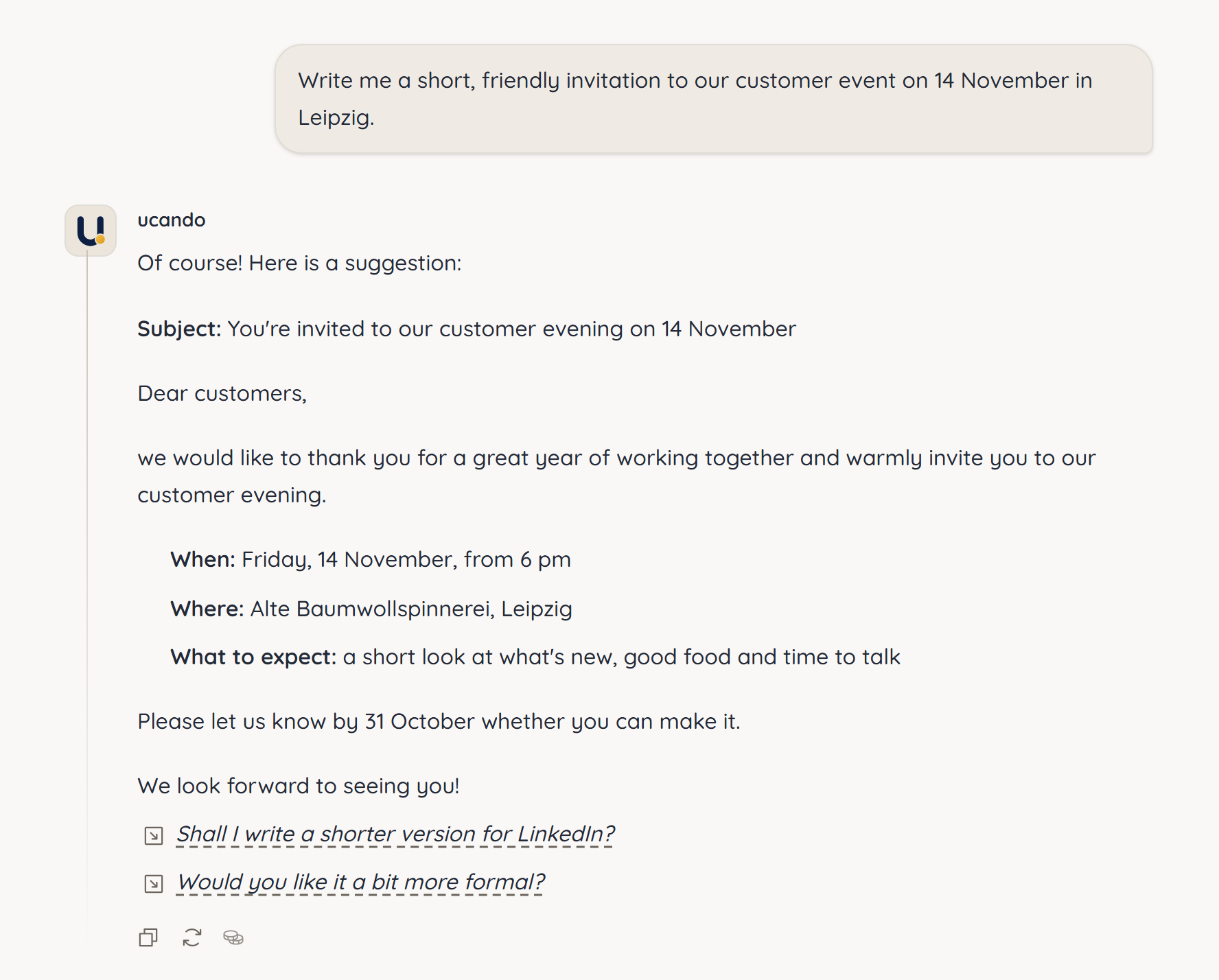
ucando writes the answer into the chat word by word. Headings, lists, tables and code appear formatted. Code blocks have their own copy button.
If the answer takes too long or goes in the wrong direction, click Stop. Send again sends the same message once more.
ucando uses AI and can make mistakes. Check important information before relying on it.
Keeping the conversation going
ucando knows what has been said in the chat so far. So you can refer to earlier answers, with requests like “Make it shorter” or “Translate the second paragraph into German”.
Below many answers ucando suggests useful next steps. Clicking a suggestion puts it into the input field, where you can adjust it before sending.
Your chat appears in the sidebar under Chats. You can open it again later and carry on.
What else the input field offers
- + (More options) – attach files or photos, add files from the Library, create an image, switch on web search or decide whether ucando uses your memory.
- / at the start of the input or after a space – opens the same commands as a list above the input. Keep typing to filter them. Pick one with the arrow keys, run it with Enter or Tab, and close the list with Esc.
- Model – shows which AI model answers. More under Choosing a model.
In a new chat you also see Create image and Web search below the input field. Clicking one switches the tool on and shows example tasks for it.