Instructions and files
Decide what every chat in the project should know and follow.
Instructions and files are a project's shared context. ucando takes both into account in every chat that belongs to the project.
Setting instructions
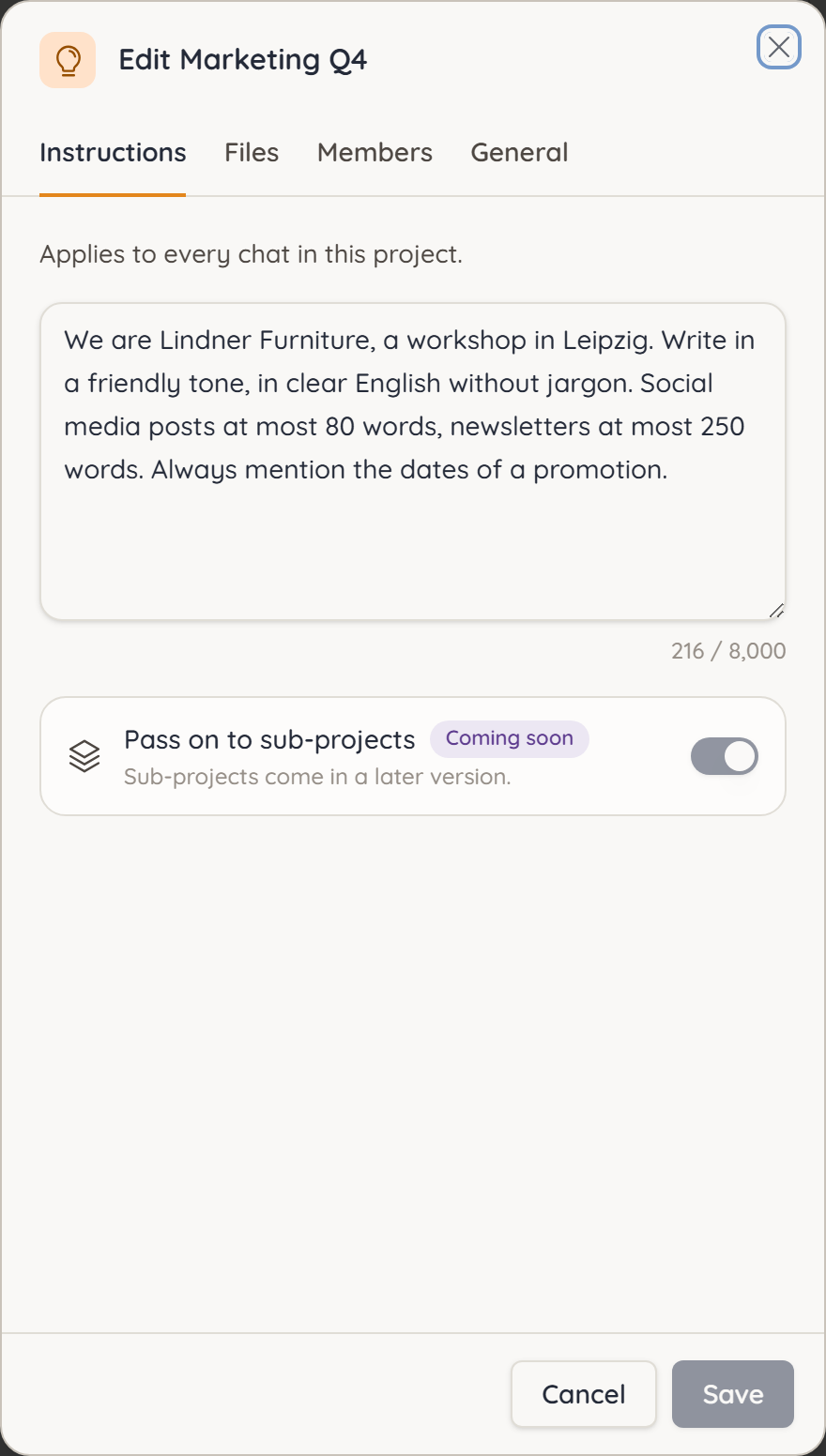
- Open the project.
- On the Instructions card, click Edit instructions (the pencil icon).
- Write what every chat should follow.
- Click Save.
Good instructions describe tone, language, format or background information, for example: “We are a furniture retailer in Leipzig. Write in a friendly tone and keep each text under 150 words.” Instructions can be up to 8,000 characters long.
Instructions apply from the next message on – including chats that were already in the project.
Adding files
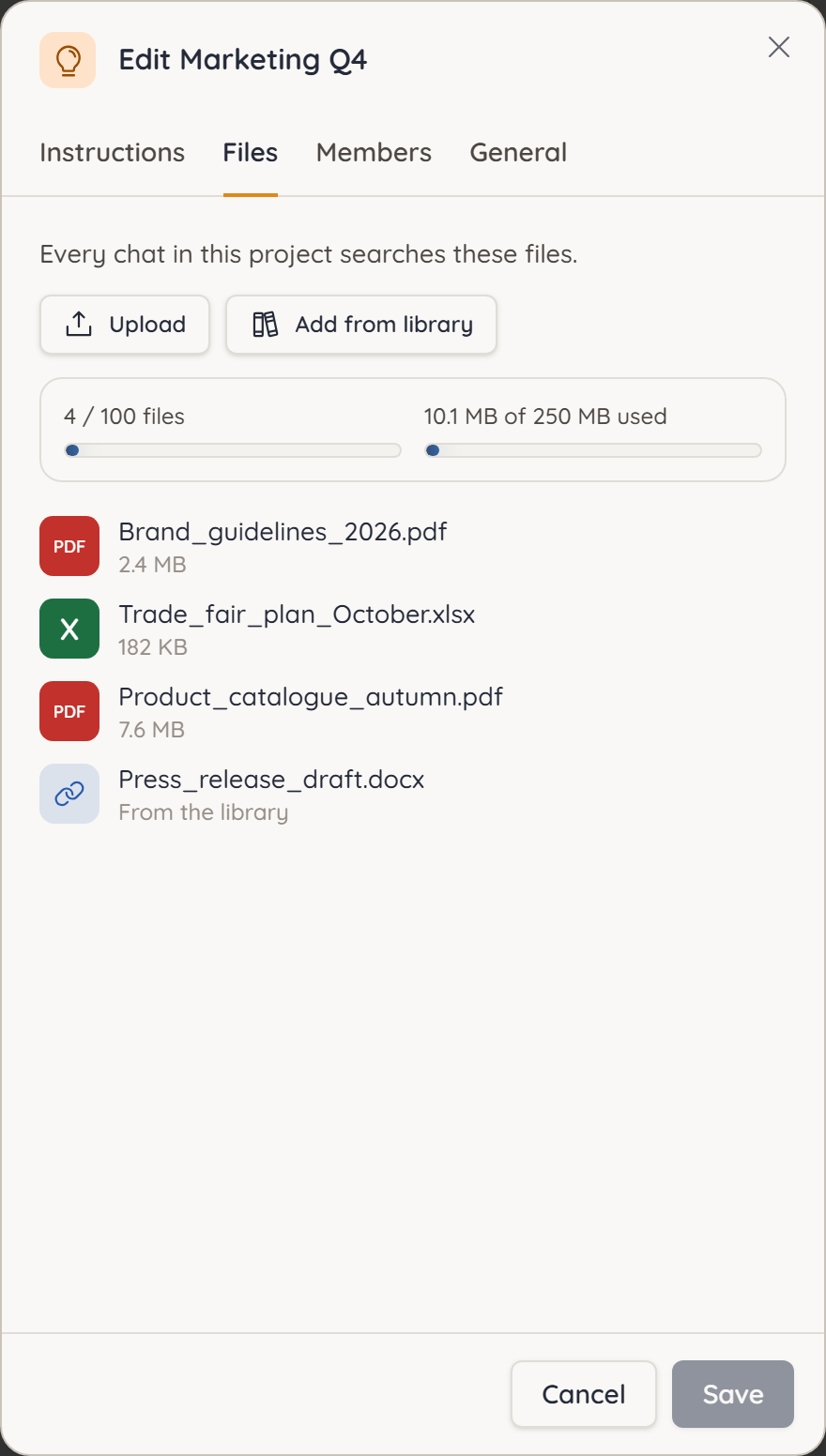
- On the Files card, click All files. The Files tab opens.
- Choose Upload to add new files, or Add from library to link files from your Library.
- Wait until the files are prepared. Until then they show Processing.
It is quicker with the upload icon in the top right of the Files card.
From then on, every chat in the project searches these files and cites them in its answers. A file from the Library is linked, not copied; it is marked From the library.
A project holds up to 3 files on the Free plan and up to 100 files totalling 250 MB on the Pro plan; linked Library files only count towards the number.
If a file could not be processed
If a file shows Processing failed, click Process again. If that doesn't help, remove the file and upload it again.
Removing files
In the Files tab, hover over the file and click the delete icon. An uploaded file is deleted, and no chat in the project finds it afterwards. For a linked file only the link is removed; the original stays in your Library.
Saving a chat as a file
Ask ucando in any chat to save it to a project, for example: "Put a summary of this chat into Campaign Alpha" or "Save the whole chat to Campaign Alpha". ucando asks before anything is saved: the question in the chat shows the project, the file name and, for a summary, the complete text. Only after Confirm does the file land in the Files tab as Markdown. If you simply write on instead, nothing is saved.
Who may save chats is set by the owner under Edit → Members → Who may save chats: only the owner, owner and "Edit" (default), or "Use" as well. The "Read" role cannot save chats.
Personal memory in a project
Under Edit → General, the Use personal memory switch decides whether ucando uses your saved memories here. When it is off, nothing from your memory flows into these chats, and nothing from these chats ends up in it. That is useful for initiatives that should stay confidential. More under Memory.