Memory
ucando remembers what matters to you and uses it in later chats – you can always see what is saved and change it yourself.
How ucando remembers things
- When you ask – Write, for example, “Remember that I work in sales” or “Forget my old employer”. What you explicitly ask it to remember, ucando saves.
- Automatically – If you mention something about yourself, your work or your company that will be useful later, ucando saves it in the background.
- From earlier chats – If a question needs something you said or decided in an earlier chat, ucando looks it up there. In a project it only looks in that project's chats, otherwise only in chats outside projects. A deleted chat is never drawn on again.
Every memory has a type: Profile, Preference, Fact, Plan or Company. When something changes, ucando replaces the old memory instead of adding a second one. You then find the old one under History.
Long-term memory is available on every plan: up to 5 saved memories on Free, 100 on Pro. When the limit is reached, ucando saves nothing new and tells you. Under Settings → Memory → Saved memories you delete or edit entries.
Checking and changing a memory in the chat
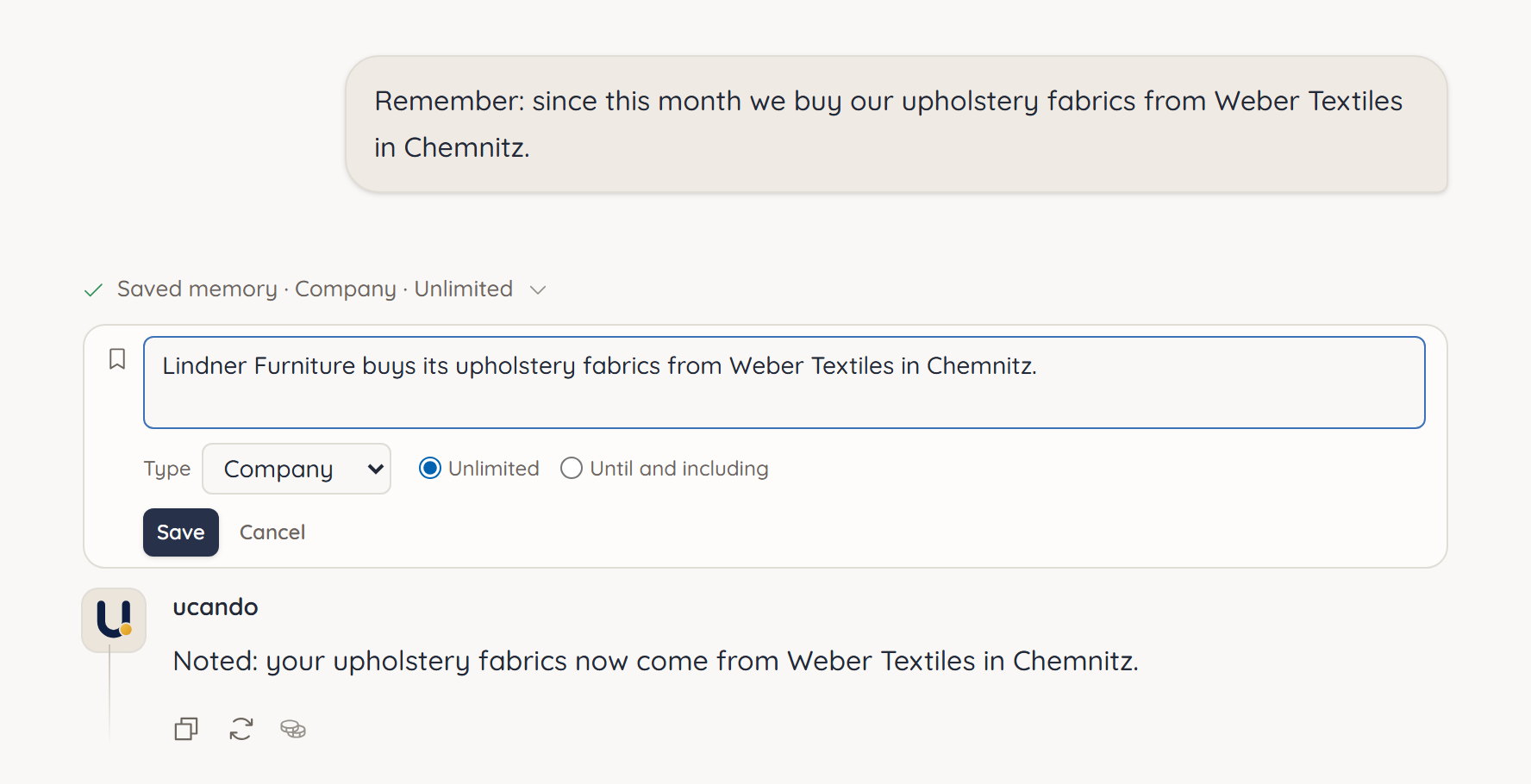
When ucando saves something during a chat, a narrow line appears, for example Saved memory · Company · Unlimited: above the answer when you asked ucando to remember it, under the answer when ucando learnt it from the conversation. It names the type and how long ucando keeps the memory. If it was saved already, the line says Already saved. If new information replaces old, it says Replaced memory.
- Click the line. It shows the memory as it is saved now.
- Click Edit memory.
- Change the text, the Type or how long it is kept: Unlimited, or Until and including with the last day.
- Click Save.
When ucando looks something up in your memory, a line such as Recalled 3 memories appears. You change each entry there with Edit memory as well. A quiet note under an entry tells you more:
- loose match: the entry only roughly fits the question.
- already in context: ucando had the entry in front of it already.
- no longer holds since …: an earlier detail that no longer applies.
- Entry deleted: you have deleted the entry since.
How long ucando keeps something
The default is Unlimited. Only what is clearly over soon, such as “I'm on holiday next week”, gets a last day. After that day ucando no longer uses the memory and deletes it. Goals and plans with a year, such as “Our goal for 2027 …”, stay unlimited.
Seeing what an answer used
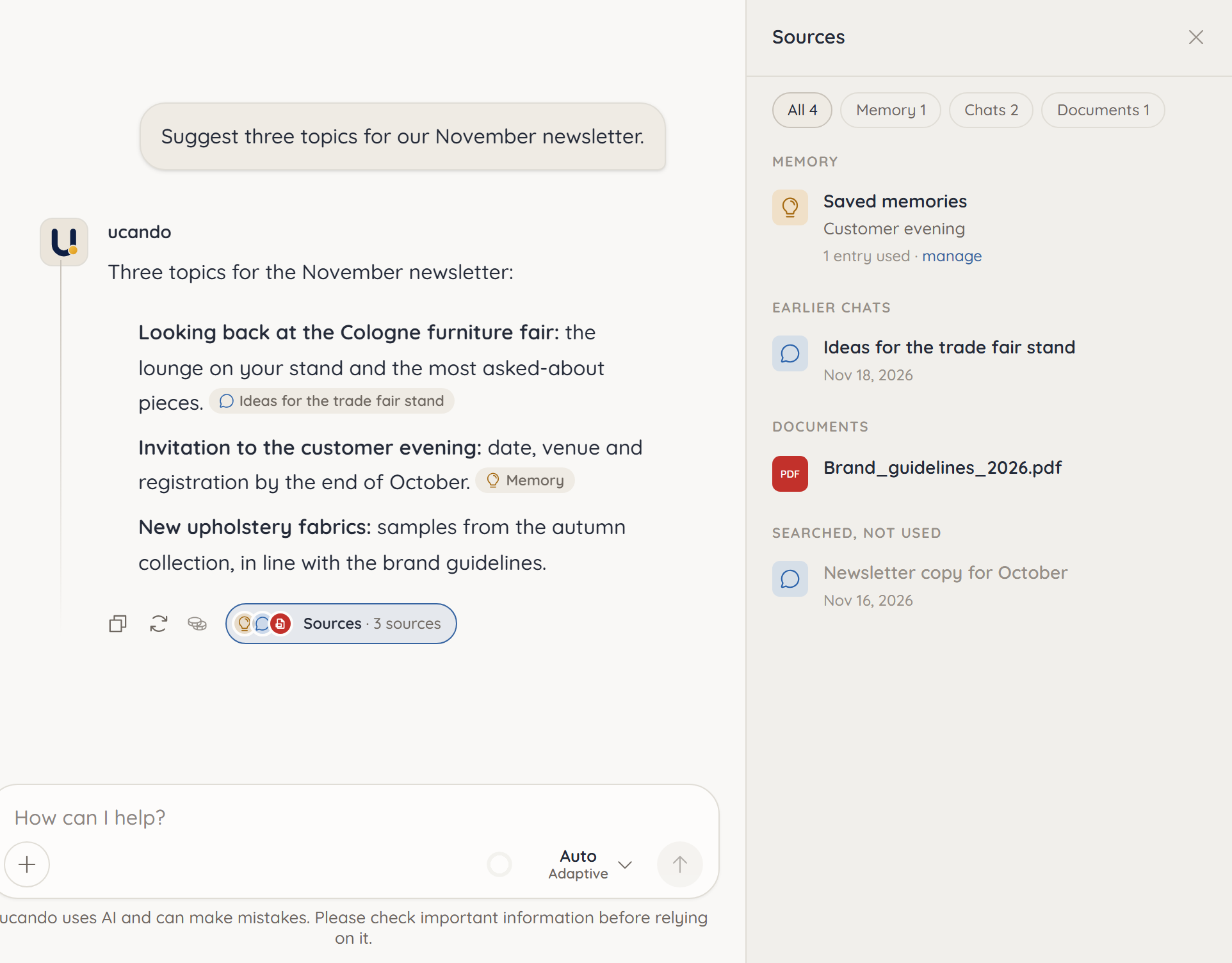
Under an answer, the Sources button shows what ucando drew on, for example Sources · Memory + 2 chats. Click it to open the sources: next to the chat on a computer, from the bottom on a phone.
- Saved memories says how many entries the answer used. Clicking it opens Settings › Memory.
- Earlier chats show what ucando took from that chat. Clicking one opens the chat at that point.
- Searched, not used lists chats and files that were found but didn't fit well enough or weren't used.
When a sentence relies on your memory or an earlier chat, a reference such as Memory or the chat's name follows it. Point at it to see the memory. Memory and earlier chats count under Sources only when a sentence names them this way.
If ucando used neither your memory nor earlier chats, files or the web, there is no button.
With or without memory for a message

Normally ucando decides by itself whether memories fit your question. You can also decide:
- In the input field, click + or type / at the start of the input, and choose:
- With memory: ucando looks in your memory.
- Without memory: ucando draws on neither your memory nor earlier chats, and saves nothing from these messages automatically.
- Its icon appears next to +: a person, or a person struck through. Only one of the two applies: choosing the other replaces the first.
- Clicking the icon switches it off, and ucando decides by itself again.
The choice applies in this chat until you switch it off or open another chat. If you explicitly ask it to remember something, ucando does so even Without memory. In a project that keeps personal memory out, neither entry is offered.
Viewing and managing memories
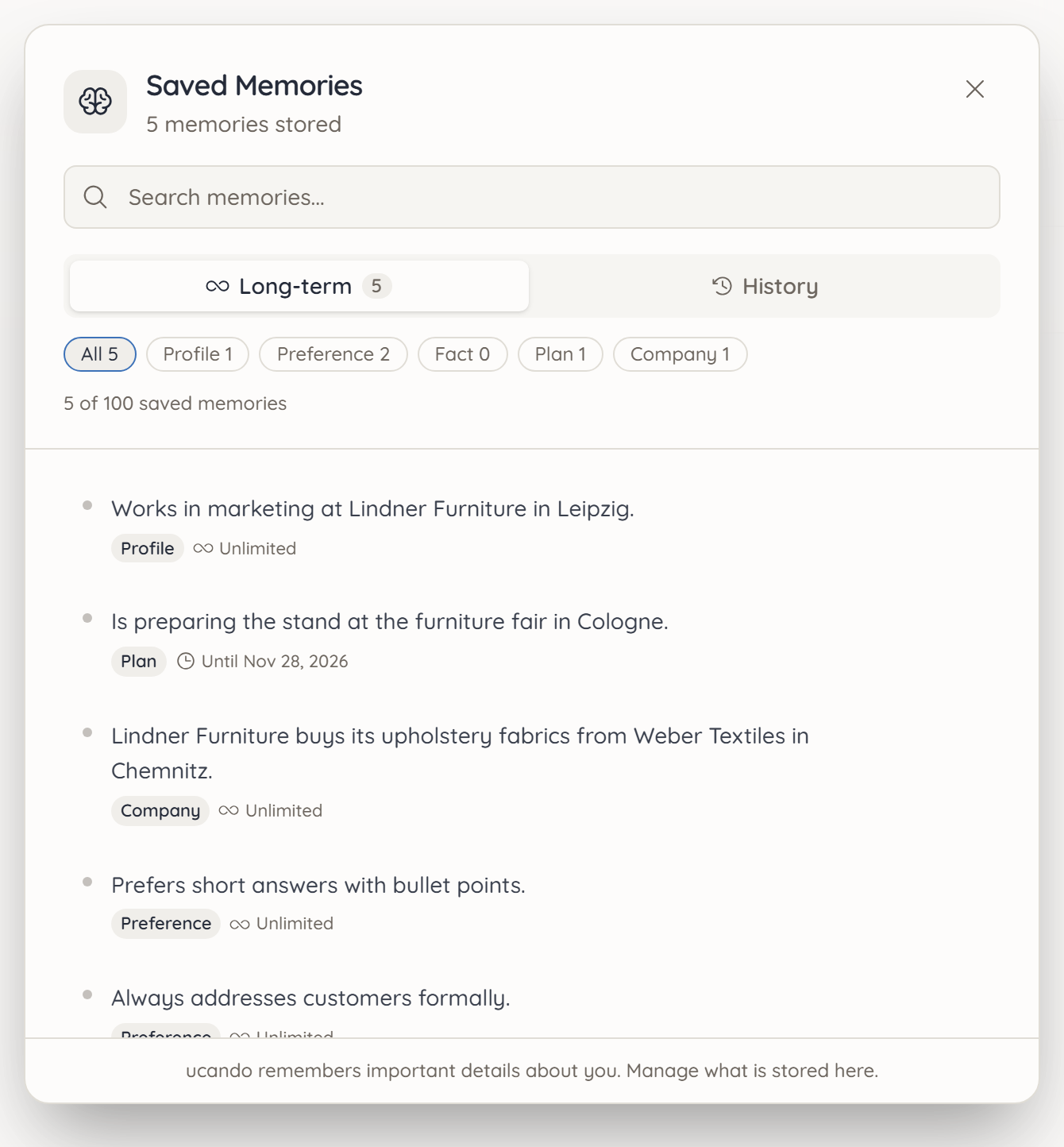
- Choose Memory in the user menu. Alternatively, open Settings and choose Memory.
- Next to Saved memories, click Manage.
- Switch between Long-term and History, or search with Search memories....
Under Long-term you filter by type, for example only Company. You edit or delete every entry here just as in the line in the chat.
History lists memories a newer one replaced, with No longer holds since and the date. ucando draws on them when you ask about earlier states, such as “Who did we buy fabrics from before?”. If you no longer need an entry, delete it.
Turning memory off
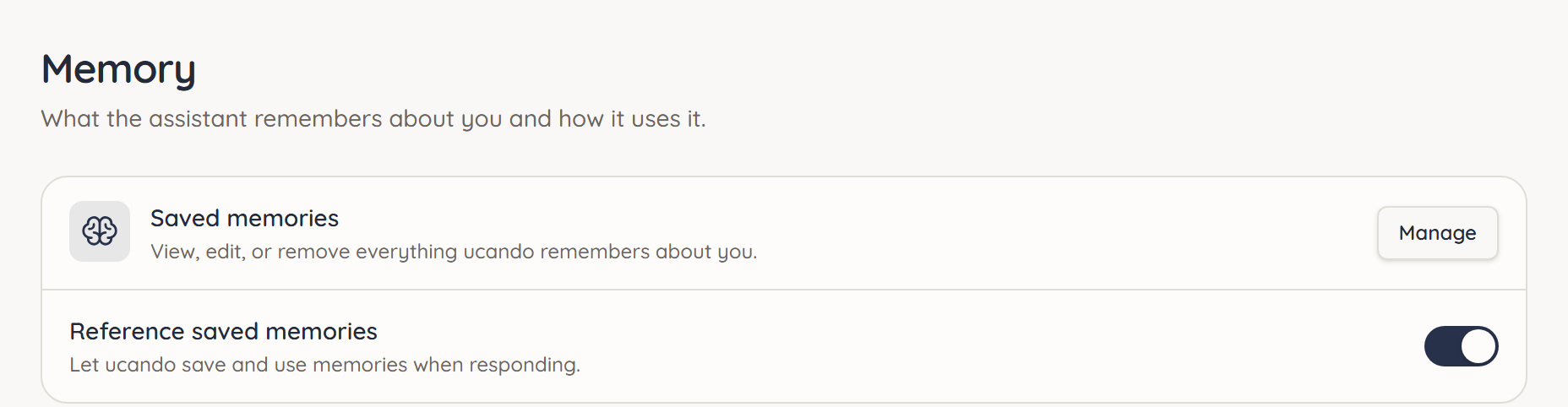
Under Settings → Memory, the Reference saved memories switch decides whether ucando uses your memory. When it is off, ucando doesn't bring saved memories into its answers and saves nothing new, not even when you ask it to.
When you switch it off, ucando asks whether everything it already remembers should go too. Keep leaves it in place; Delete everything permanently removes all your memories, the long-term ones and those from your chats.
The setting applies to your account, on every device.
For individual initiatives there is also the Use personal memory switch in every project. When it is off, nothing from your memory flows in there, and nothing from those chats ends up in it.