A tour of the interface
Sidebar, search and user menu – how to find your way around ucando.
ucando has two parts: the sidebar on the left and the main area on the right, where your chat or the page you opened appears.
The sidebar
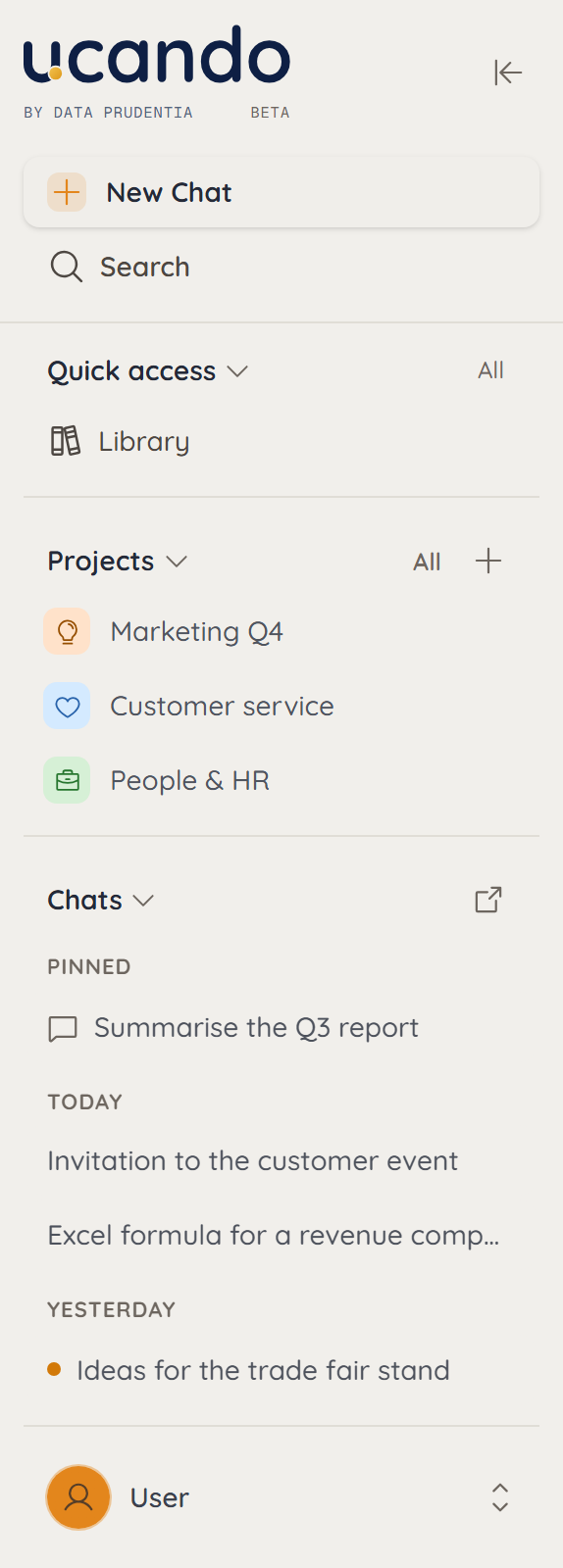
From top to bottom you find:
- New Chat – starts a new conversation.
- Search – searches your chats, agents and features.
- Quick access – your most important features, for example the Library.
- Projects – your initiatives, each with its own chats, files and instructions.
- Chats – your history, sorted into Pinned, Today, Yesterday, Last 7 days and Older. View all chats opens the full overview.
- Your name – opens the user menu.
The icon in the top right of the sidebar collapses it into a narrow rail, giving the chat more room.
Ctrl+B (Mac: ⌘B) shows and hides the sidebar.
Searching chats, agents and features
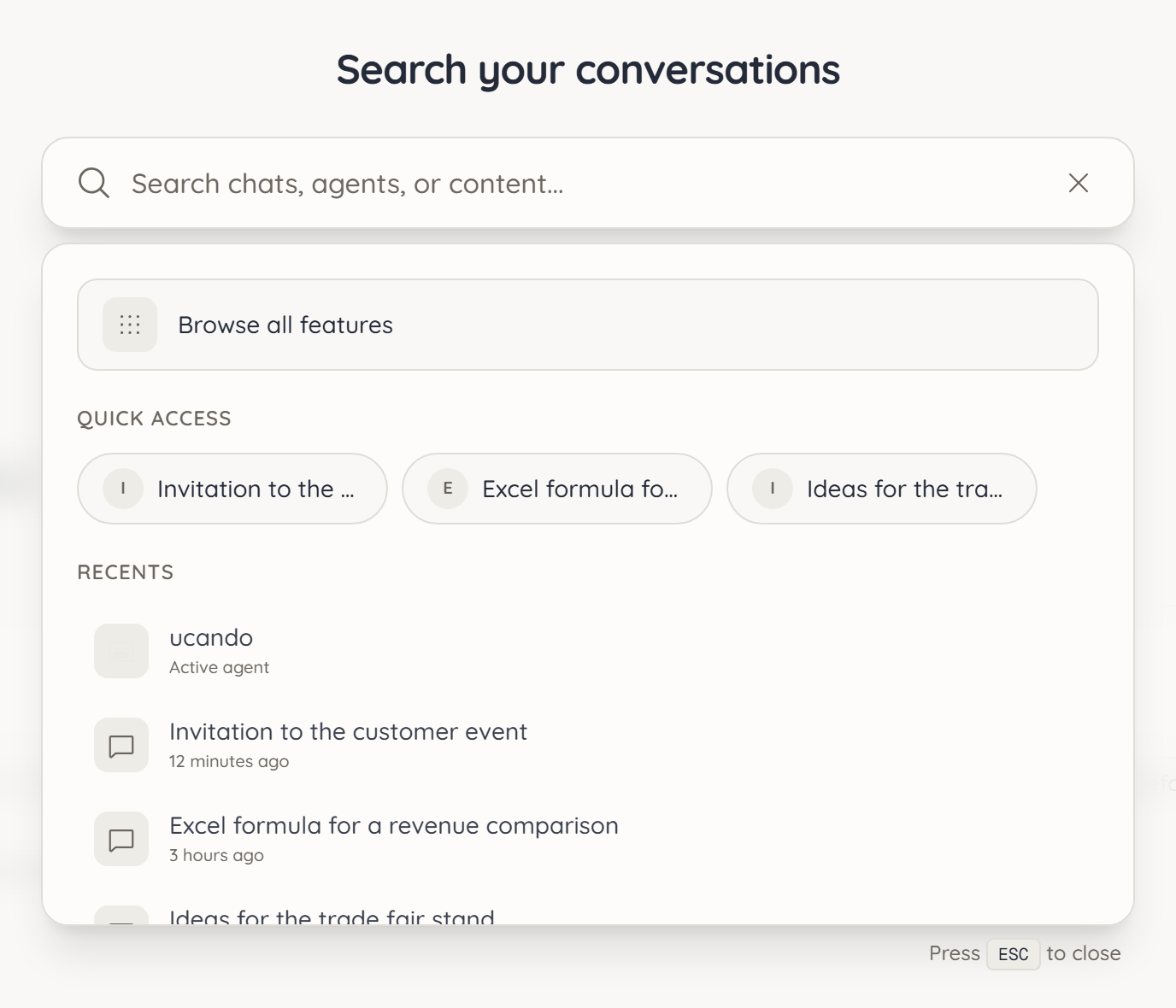
- Click Search or press Ctrl+K (Mac: ⌘K).
- Type a search term.
- Pick a result with the arrow keys and open it with Enter.
Without a search term the dialog shows your quick access and your recent chats. Esc closes it again.
All features and quick access
Quick access shows only some of the features. All the others, such as Favorites and Archive, are under All.
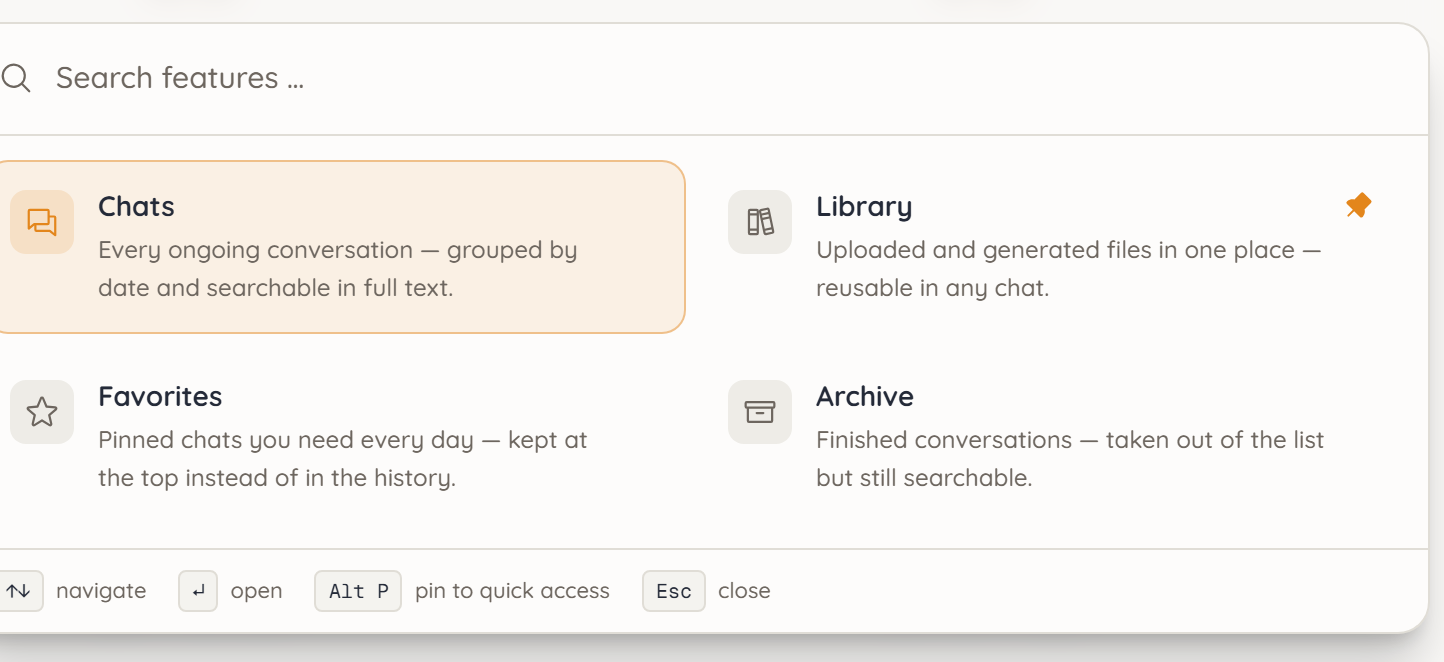
- Click All in quick access or press Alt+B.
- Choose a feature to open it.
- To keep it in quick access, highlight it and press Alt+P. The same key removes it again.
Alt+1 to Alt+9 jump straight to the first to ninth feature in quick access.
The user menu
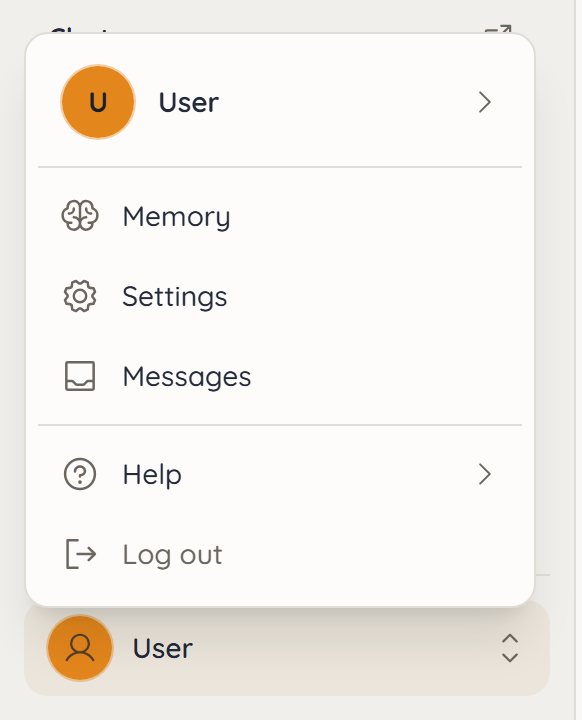
Click your name in the bottom left. The menu holds:
| Entry | What it's for |
|---|---|
| Your name | Shows name, email and plan, and opens your Account in the settings |
| Upgrade plan | Takes you to the plans, shown on the Free plan only |
| Memory | Your memory |
| Settings | Language, appearance, usage, billing and data controls, see Settings |
| Messages | News, notices and your requests |
| Admin Panel | Managing your company, visible to administrators only |
| Help | Documentation, Tutorial, keyboard shortcuts, Report Bug, plus the terms of service and privacy policy. On a phone, Help slides up from the bottom |
| Log out | Ends your session in this browser |
Messages
In the top right of every page you see the Messages icon. News, incident notices and the replies to your requests arrive there. A number on the icon shows how many messages you haven't read yet.