Managing conversations
All your chats at a glance – search, filter, organise with tags, pin and archive.
The sidebar shows your recent chats. For an overview of all conversations there is the Conversations page.
Opening the overview
In the sidebar, click View all chats next to Chats. Alternatively, under All, open Favorites (pinned chats only) or Archive (archived chats only).
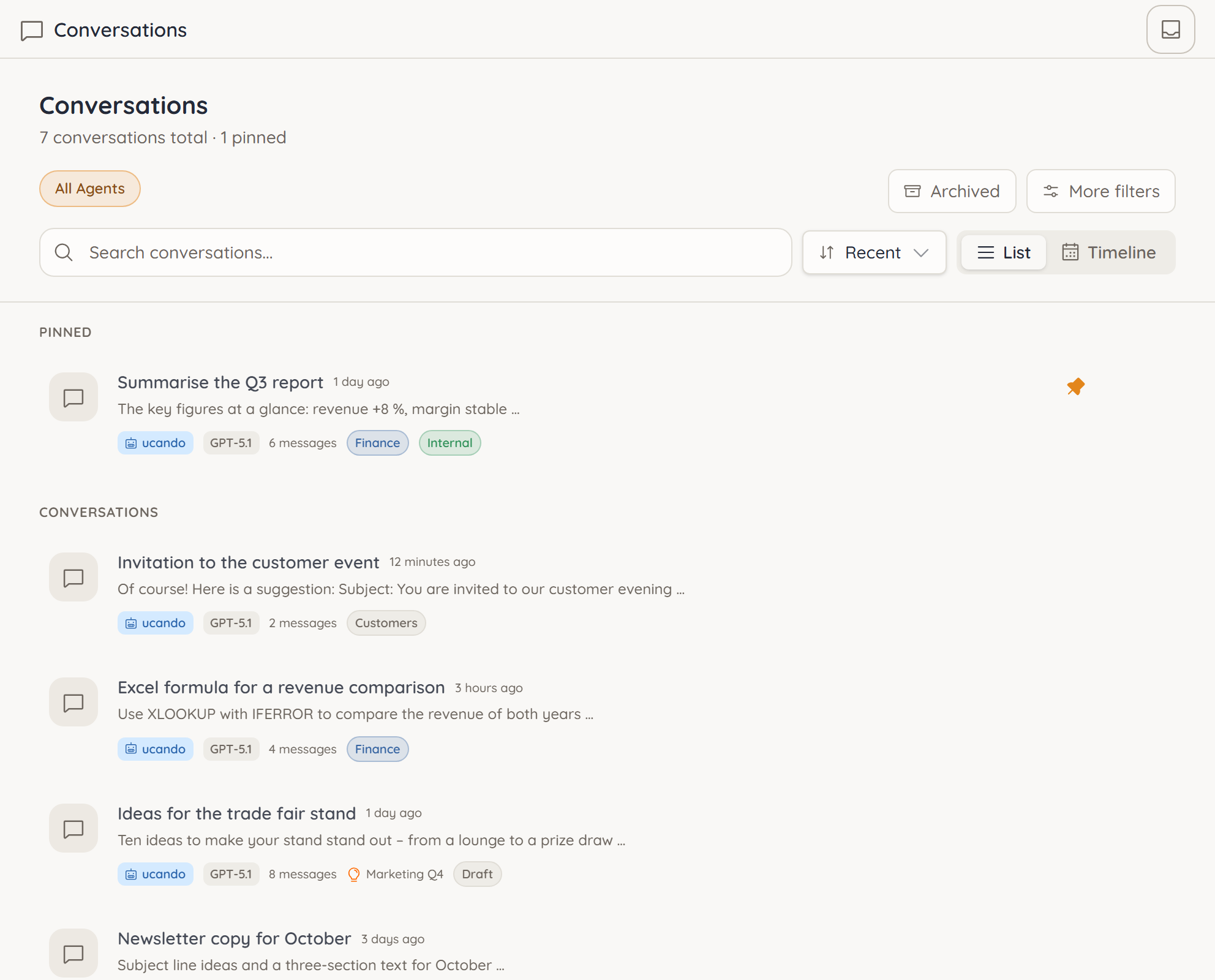
Each row shows the title, last activity, a short preview, the model, the number of messages, the project and up to two tags.
Searching, sorting and switching views
- Search – Type into Search conversations.... ucando searches the titles of your chats.
- Sort – Choose Recent, Oldest or Title.
- View – List shows pinned chats at the top and all others below. Timeline groups by Today, Yesterday, This week and Older.
The page loads 30 chats at first. Load more fetches more.
Filtering
At the top, choose an agent or All Agents. Archived switches straight to your archived chats. More filters are under More filters:
| Filter | Options |
|---|---|
| Model | A specific model or All models |
| Status | All, Pinned or Archived |
| Date range | All time, Today, This week, Last 30 days, Older or Custom with your own from and to dates |
| Tags | One or more of your tags |
Filters apply immediately. Reset all removes them again.
Organising chats with tags
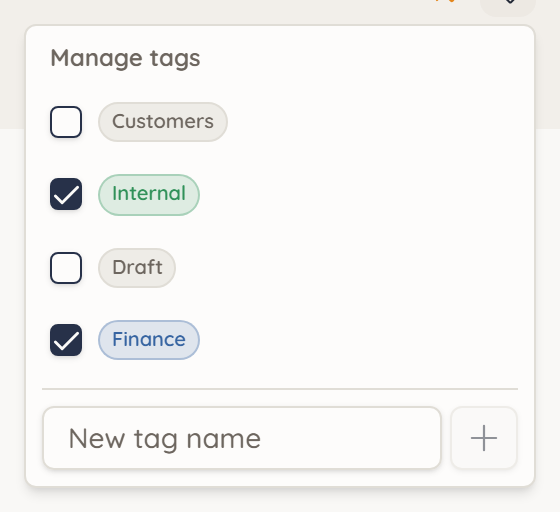
- Hover over a chat and click Manage tags.
- Tick or untick existing tags.
- For a new tag, type its name into New tag name and press Enter. The tag is assigned right away.
A tag's colour is derived from its name automatically.
Pinning, moving, archiving and deleting
Hover over a chat. Pin keeps it at the top, Unpin reverses that. The More actions menu holds:
- Move to Project – files the chat under a project.
- Archive – takes the chat out of the sidebar. For archived chats this item reads Unarchive.
- Delete – removes the chat and all its messages for good.
Deleted chats cannot be restored. Archiving is the safe way to tidy up.