Settings
Manage language, how the chat looks, memory and your account in one place.
Open the settings
Click your name in the bottom left of the sidebar and choose Settings. The settings open as a page of their own, starting with the General section. Back to app in the top left takes you back to the chat.
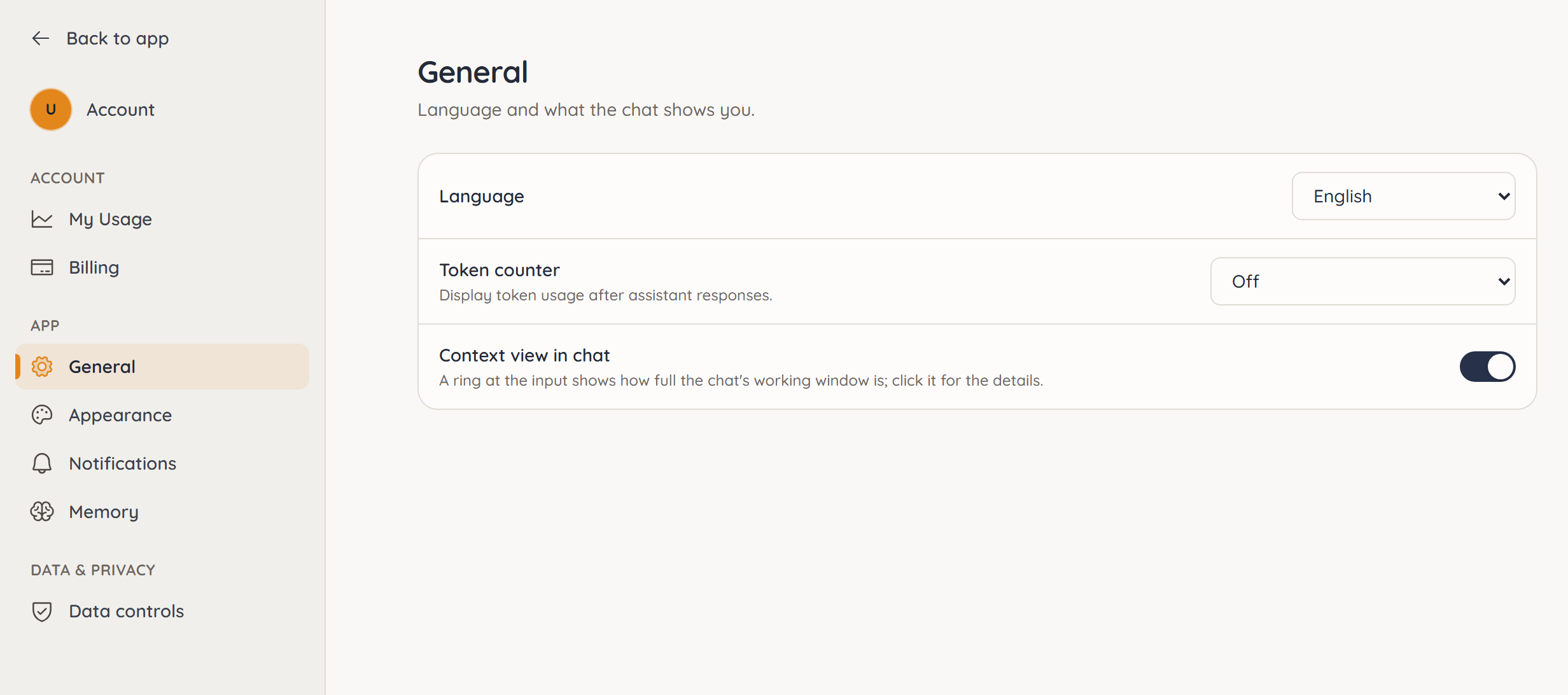
The navigation on the left is grouped:
- Account – My Usage and Billing.
- App – General, Appearance, Notifications and Memory.
- Data & privacy – Data controls.
- Administration – Admin Panel, visible to administrators only.
Your profile with name and plan sits at the very top. Click it to open the Account section.
On a phone, the page first shows only the navigation. Tap a section to open it. ‹ Settings at the top takes you back to the list.
General
| Setting | Options | Effect |
|---|---|---|
| Language | Deutsch, English | Language of the interface and of the answers |
| Token counter | Off, Simple, Normal, Detail | Shows the tokens used after each answer |
| Context view in chat | On, Off | A ring at the input shows how full the chat is |
Language
The language applies to the interface and to the answers: ucando answers in the chosen language unless you explicitly ask for another one in the chat. If you write, say, “Answer in German”, ucando follows that for the chat.
Token counter
What each level shows is explained under Chat basics.
Context view in chat
A small ring next to the model picker shows how much of the chat's working window is used. When the chat gets long, the ring changes colour; ucando will then soon summarise older parts. Click the ring for the details: how much goes to instructions, tools, history and sources, from when older parts get summarised and when that last happened. You can also compact the chat yourself there. The view shows numbers only, no content.
Appearance
| Setting | Options | Effect |
|---|---|---|
| Theme | System, Dark, Light | ucando's colour scheme |
| Colour preset | Gold (default), Blue, Violet, Green, Teal, Pink, Graphite | Colours highlights, actions like New chat, selection and focus |
| Own colours | Primary, secondary, ternary and accent colour and background, each for light and dark | Override the preset with a colour picker; readable combinations are your responsibility |
| Interface font size | 11 to 17 px (default 14) | Base text size; menus, buttons and spacing grow with it |
| Code font size | 8 to 22 px (default 13) | Size of code blocks in chats |
| Reduce motion | System, On, Off | Fewer animations; "System" follows your device setting |
| Message density | Compact, Comfortable | How much room messages get in the chat |
| Chat width | Narrow, Normal, Wide | How wide the conversation and the input box are |
| Move sent message to the top | On (default), Off | After you send, your message glides to the top and the answer appears below it. Once the answer is longer than the screen, the chat follows its end |
| File icons | Tile (default), Document, Duotone | How documents, attachments and sources are drawn |
Theme
With System, ucando follows your device's setting and switches between light and dark automatically.
Your settings are stored in this browser. On another device or in another browser you set them once again. The exceptions are the context view in chat and the colour preset, own colours, font sizes and reduce motion: they apply to your account on every device.
Account
The Account section shows Name, Email, Plan and App version. Name and email come from your sign-in account and can't be changed here. On the Free plan, Upgrade plan takes you to the plans; otherwise Manage plan opens billing. Log out signs you out on this device.
Other sections
- Under Memory you see and manage what ucando has remembered. See Memory.
- Under Notifications you choose which messages you also receive by email. See Email notifications.
- Under Data controls you find archived conversations, the export of your data and deleting your account. See Privacy and account.
- Under My Usage you see your credit usage. See My Usage.
- Under Billing you manage your plan, credits and invoices. See Billing.