Messages
News, incidents, notices about your account and your requests – all in one place.
Messages collects everything we tell you, plus the replies to your requests.
Opening Messages
- Click the Messages icon in the top right. If there is anything unread, it turns coloured and shows the count.
- Or open the user menu in the bottom left and choose Messages.
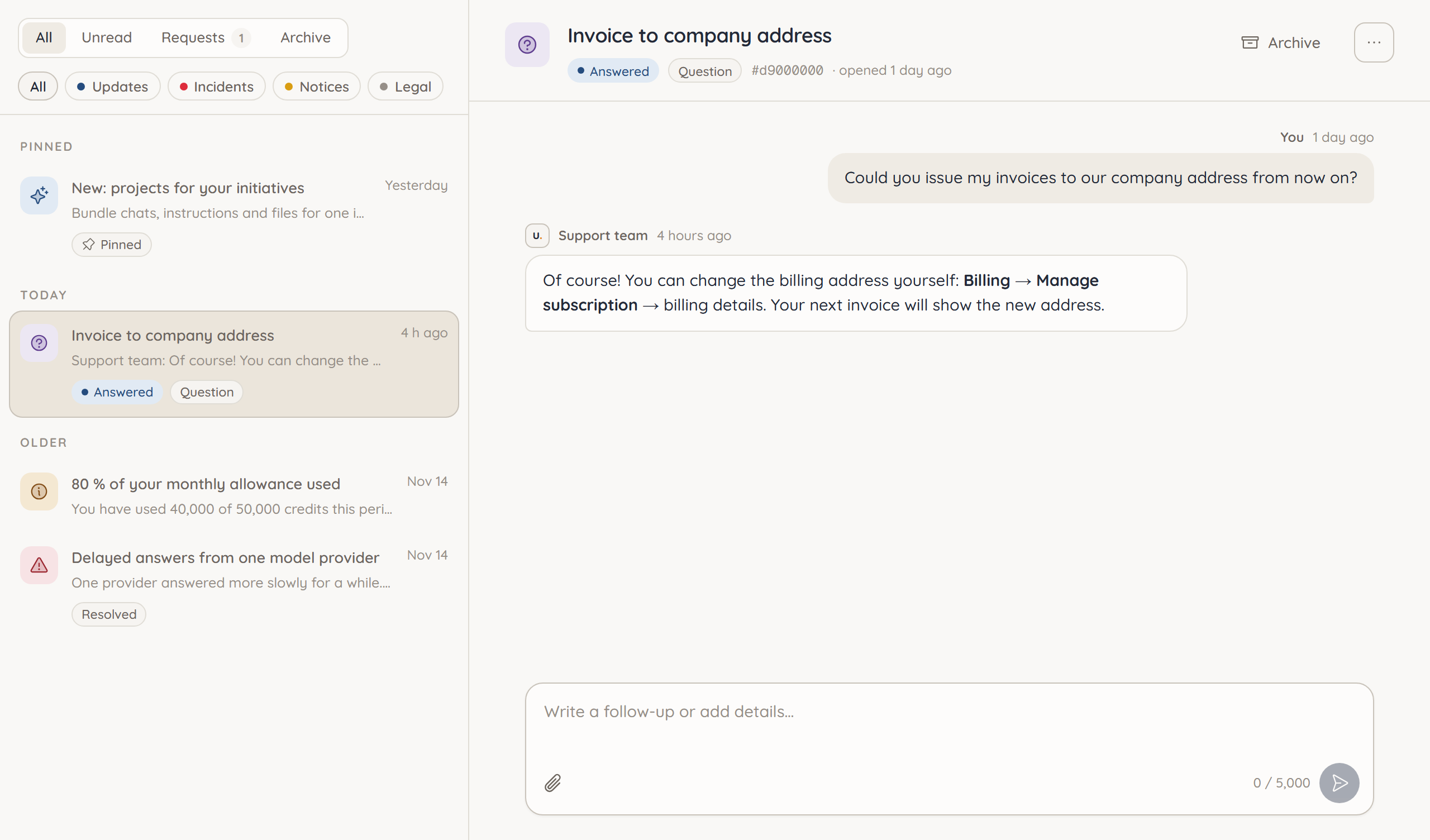
The list of your messages is on the left, the open message on the right. Opening a message marks it as read.
Views and categories
At the top you choose a view: All, Unread, Requests or Archive. The categories narrow it down further:
| Category | Content |
|---|---|
| Updates | News and new features in ucando |
| Incidents | Current technical problems and their resolution |
| Notices | Notices about your account, for example about your usage or a failed payment |
| Legal | New versions of the terms of use or privacy notices |
Each message shows who it is from: From ucando, From your organization or Automatic notice.
During an active incident, a red card also appears in the sidebar. View status opens the notice.
Searching, archiving and marking
- Search – Type into Search messages. Only messages containing all search words are found.
- Archive – takes a message out of the inbox. In the Archive, Move back to inbox brings it back.
- More – the three-dot menu holds Mark as unread and Copy link.
/ jumps to the search, ↑ and ↓ move through the list, E archives the selected message.
Acknowledging legal notices
When there is a new version of the terms of use or privacy notices, we sometimes ask you to acknowledge it. A yellow Legal notice banner then appears at the top of every page and cannot be dismissed.
- Click View now in the banner.
- Read the new version via Open document.
- Click Acknowledge.
The banner then disappears. Such a message can only be archived once you have acknowledged it.