Resources
Keyboard shortcuts
Work faster without the mouse – every ucando keyboard shortcut at a glance.
You also find an overview of all shortcuts in the app: open your user menu in the bottom left and choose Help → Keyboard shortcuts.
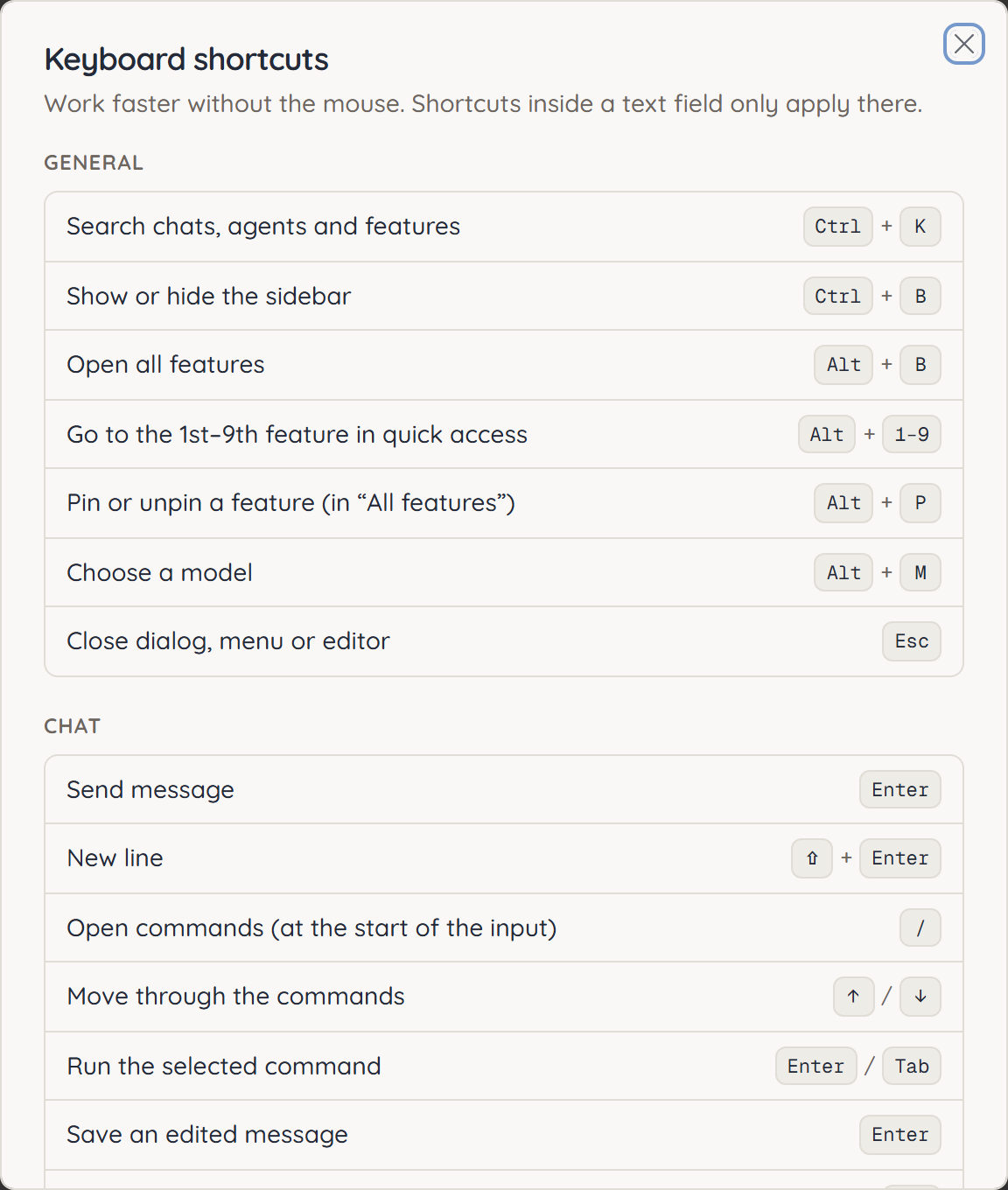
On a Mac, use ⌘ instead of Ctrl and ⌥ instead of Alt. Shortcuts you press inside a text field only apply there.
General
| Shortcut | Action |
|---|---|
| Ctrl+K | Search chats, agents and features |
| Ctrl+B | Show or hide the sidebar |
| Alt+B | Open all features |
| Alt+1 to Alt+9 | Go to the 1st to 9th feature in quick access |
| Alt+P | Pin or unpin a feature (in “All features”) |
| Alt+M | Choose a model |
| Esc | Close dialog, menu or editor |
Chat
| Shortcut | Action |
|---|---|
| Enter | Send message |
| Shift+Enter | New line |
| / | Open commands (at the start of the input or after a space) |
| ↑ / ↓ | Move through the commands |
| Enter or Tab | Run the selected command |
| Esc | Close the command list |
| Enter | Save an edited message |
| Esc | Cancel editing |
Messages
| Shortcut | Action |
|---|---|
| / | Search messages |
| ↑ / ↓ | Previous or next message |
| E | Archive or restore the selected message |
| Ctrl+Enter | Send reply |
Images
| Shortcut | Action |
|---|---|
| Ctrl+Enter | Apply the mask edit |
| Esc | Leave the mask editor |
On phones and tablets, Enter inserts a line break. To send, tap the send button.