Billing
Manage your subscription, buy extra credits, and see your payments, billing information and payment methods.
Open Settings in the user menu and choose Billing. This is where you manage your subscription, your credits and your invoices.
Your credits at a glance
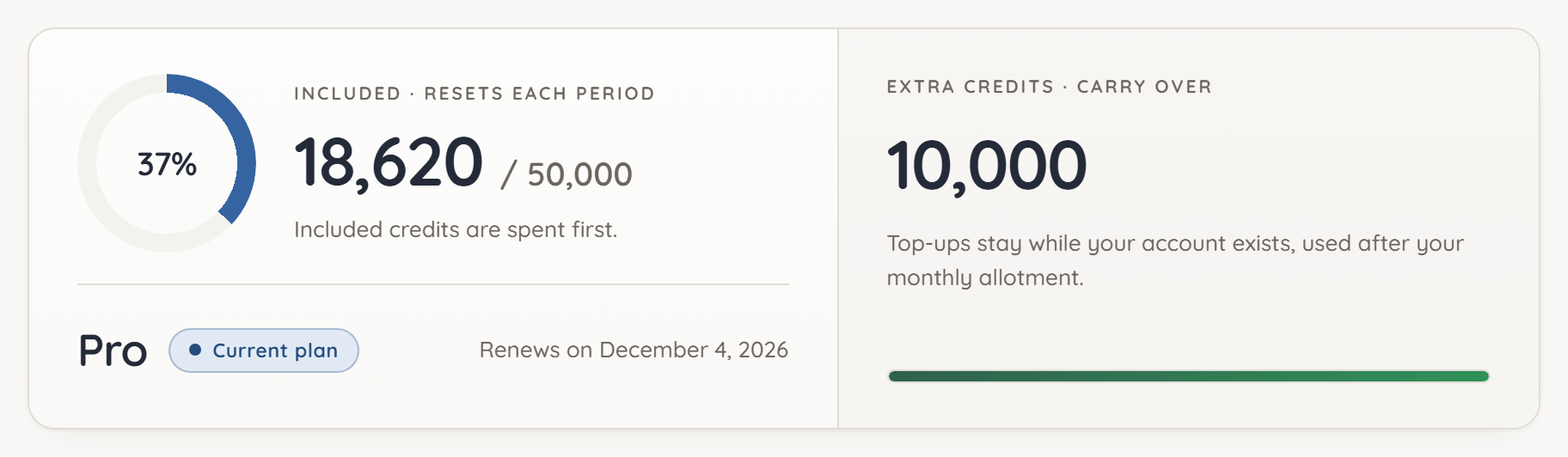
At the top you see your included credits, which are topped up at the start of each billing period, and your extra credits, which remain valid as long as your account exists. Next to them are your plan and the date your subscription renews. If you have cancelled, it says Subscription ends on ….
Included credits are always used first, then extra credits.
Buying extra credits
- Under Buy extra credits, choose a pack: Small pack, Medium pack or Large pack.
- Click Buy and complete the payment with Stripe.
- Once you are back in ucando, the credits are added right away.
Packs are a one-time purchase without a subscription. The credits remain valid as long as your account exists.
Managing and cancelling your subscription
Under Subscription & contracts, Manage subscription opens the customer portal of our payment provider Stripe. After a cancellation the button reads Renew plan; without a subscription it reads Subscribe. In the customer portal you can:
- change the plan or billing interval, for example from monthly to yearly,
- change your payment method,
- cancel your subscription.
A cancellation takes effect at the end of the paid period. Until then you use your plan as usual.
If a payment failed, ucando shows a notice with Update payment. Your plan stays active while Stripe retries the payment. Update your payment method as soon as you can.
Payment history
Payment history lists every payment with what it was for (Subscription or Credits), date, status and amount, the newest five first. View all shows the rest. The arrow at the end of a row opens the invoice in your browser, PDF saves it.
Billing information and payment methods
Billing information shows your billing email, name and billing address; Payment methods shows your stored cards, PayPal or SEPA Direct Debit. For a card, ucando shows only the last four digits; the method used for future invoices is marked Default.
You change both with Edit or Manage in Stripe's customer portal. Your payment details are stored only at Stripe, not at ucando.